Reproduce

This section describes how to download, configure, build and execute the supported use cases.

Note

You can copy all command examples on this page from the HTML document format by clicking the copy button. In the PDF document format, be aware that special characters are added when lines get wrapped.

Build host environment setup

System requirements

  • x86_64 or aarch64 host to build the stack and execute the FVP

  • Ubuntu Desktop or Server 22.04 Linux distribution

  • At least 500GiB of free disk for the download and builds

  • At least 32GiB of RAM memory

  • At least 32GiB of swap memory

Install dependencies

  • Follow the Yocto Project documentation on how to install the essential packages required for the build host. The packages needed to build the Yocto Project documentation manuals are not required.

  • Set up pipx to install Python tools in isolated environments:

    sudo apt install pipx
    pipx ensurepath
    

    After running the above commands, restart your shell or run source ~/.bashrc to ensure that the pipx binary path is added to your shell’s PATH.

  • Install the kas tool and its optional dependency (to use the “menu” plugin):

    sudo apt install python3-newt
    pipx install "kas[tui]==4.8.1" --force --system-site-packages
    

    Note

    Other versions of kas are not supported.

    For more details on kas installation, see

    kas Dependencies & installation.

  • Install tmux and telnet (required for the runfvp tool):

    sudo apt install tmux telnet
    

Download

Note

Performing the builds and FVP execution in a tmux session is mandatory for Arm Zena CSS because the runfvp tool that invokes the FVP expects the presence of a tmux session to attach its spawned tmux windows for console access to the processing elements.

Refer to Tmux Documentation for more information on the usage of tmux. It is recommended to change the default history-limit by adding set-option -g history-limit 3000 to ~/.tmux.conf before starting tmux.

Start a new tmux session, via:

tmux new-session -s arm-auto-solutions

To reconnect to an existing tmux session:

tmux attach -t arm-auto-solutions

Download the Arm Zena CSS repository using Git and checkout the release, via:

mkdir -p ~/arm-auto-solutions
cd ~/arm-auto-solutions
git clone https://git.gitlab.arm.com/automotive-and-industrial/arm-auto-solutions/arm-zena-css.git --branch v2.2
kas checkout arm-zena-css/yocto/kas/repos.yml

Reproducing the use cases

General

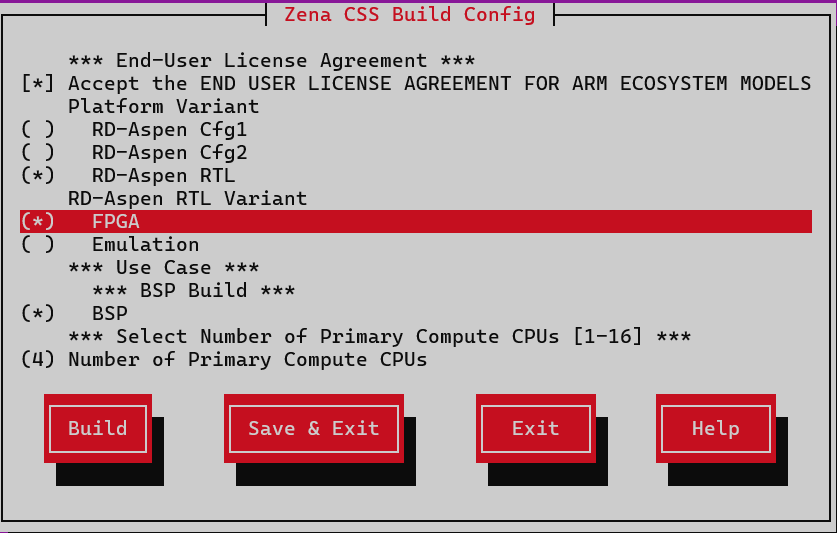
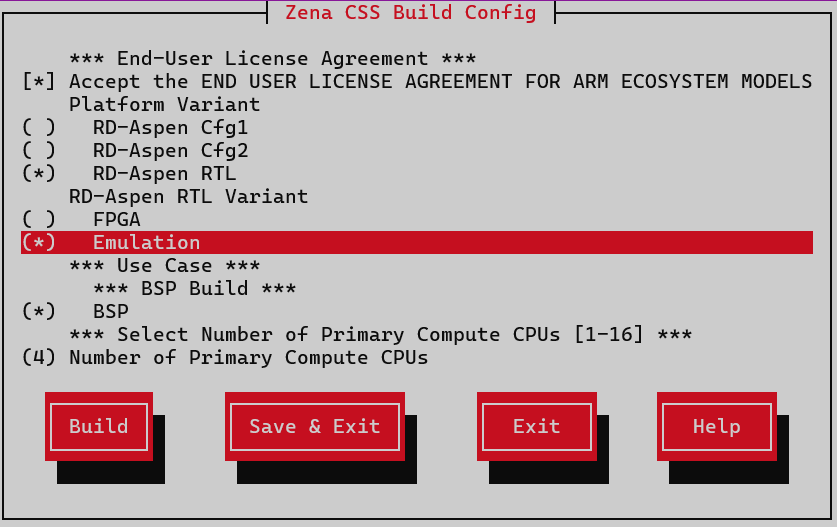
This section explains different supported use cases and how to reproduce them. For FVP builds, the software can be built for two different platform configurations - CFG1 and CFG2. RTL is described later in this section. See Configurations for more information.

List of Demos

Table 2 Supported Use Cases by Architecture

Demo

Baremetal

Virtualization

PSA APIs Tests in Primary Compute

Yes

No

Running SSU Integration Test

Yes

Yes

Running FMU Integration Test

Yes

Yes

Running SBISTC Integration Test

Yes

No

Running SMCF Integration Test

Yes

No

PFDI in Primary Compute

Yes

No

PFDI in Safety Island Cluster 1

Yes (on CFG2)

No

RAS error processing demo

Yes

No

Arm Cryptographic Extension demo

Yes

No

Mission-based power profile demo

Yes

No

Primary Compute domain reset

Yes

Yes

Virtualization Demo

No

Yes

Linux distribution installation (Debian, openSUSE and Rocky Linux)

Not Applicable

Not Applicable

Arm SystemReady Devicetree validation

Not Applicable

Not Applicable

Heterogeneous Inter-Processor Communication (HIPC) Demo

Yes (on CFG2)

No

Automated validation

Yes

Yes

Secure Firmware Update

Yes

Yes

Support for Arm Zena CSS Cfg0 RTL

RTL Only

RTL Only

Kas build

Note

This documentation does not cover network configuration settings, more information can be found at Set Up Yocto Source Download and Proxy

Note

The Safety Island Cluster 1 (SI CL1) is present only in the FVP CFG2 variant. The tmux window for SI CL1 terminal_uart_si_cluster1 only appears when the CFG2 variant is selected during the build configuration.

Run the following to open the configuration menu:

kas menu arm-zena-css/Kconfig

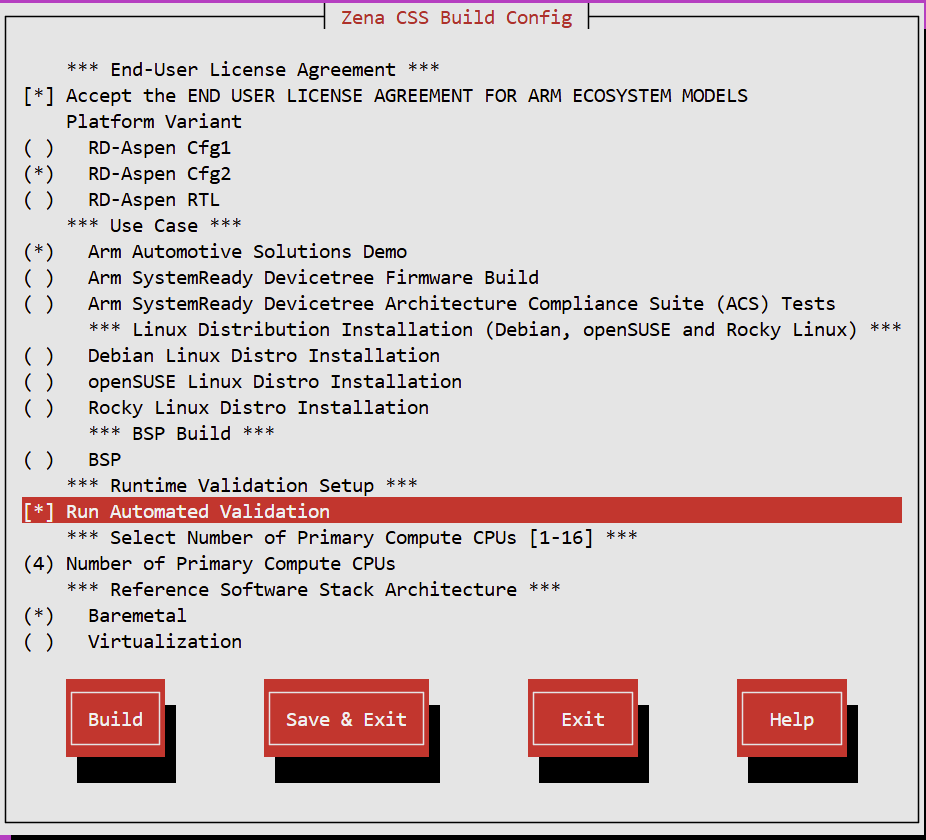
To build and run any image for an Arm FVP the user has to accept its EULA by selecting the corresponding configuration option in the build setup and pressing spacebar.

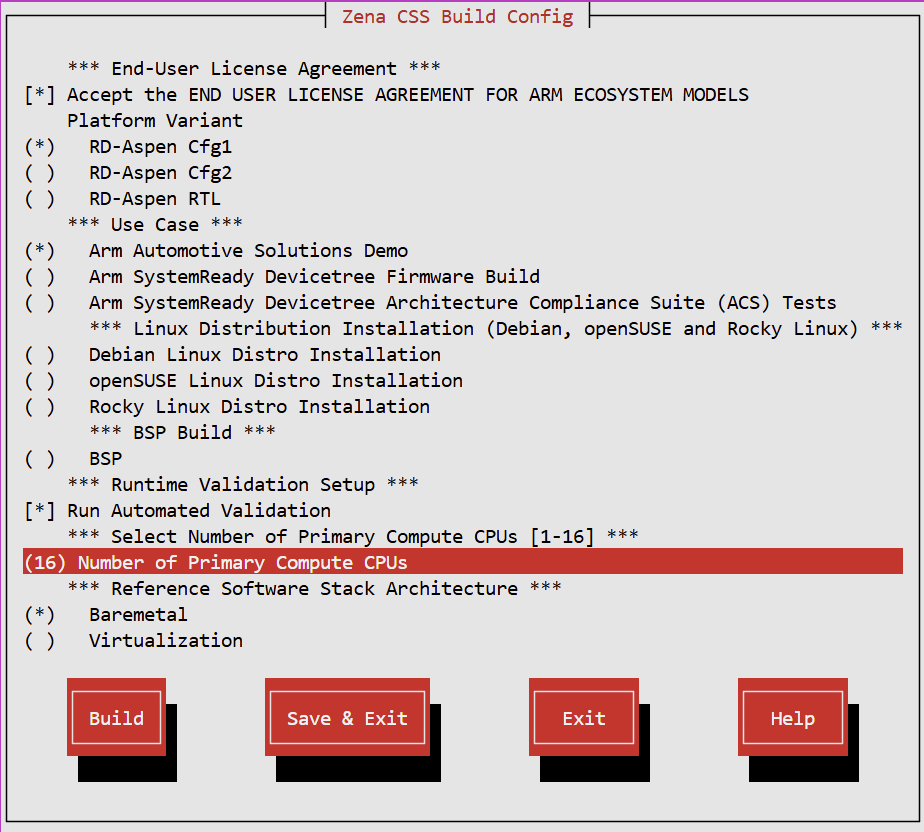
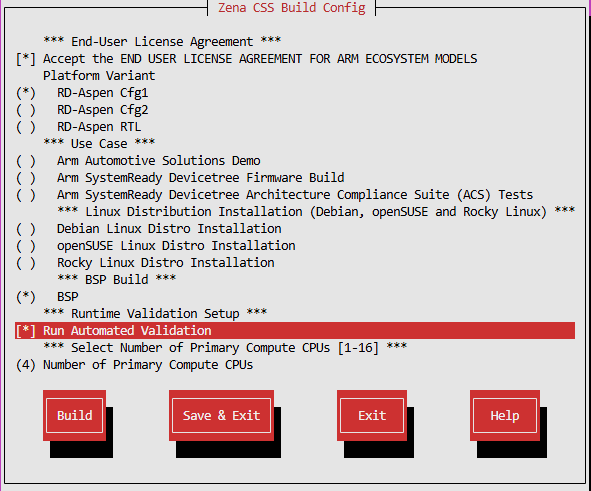
The default number of Primary Compute CPUs is 4. The user can change this by selecting a value between 1 and 16 from the Number of Primary Compute CPUs option. And also the default Platform variant is RD-Aspen CFG1. The user can change this to RD-Aspen CFG2 by selecting the Platform Variant option.

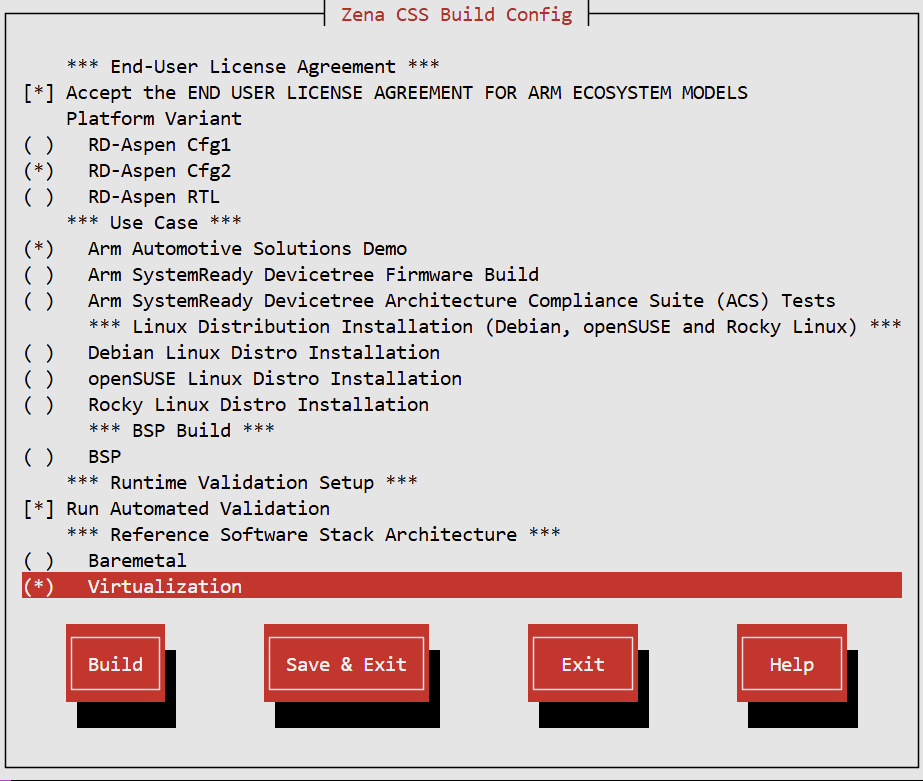
Arm Zena CSS Build Configuration Menu

Fig. 3 Arm Zena CSS Build Configuration Menu


To start the build, press the right arrow key, select the Build option and press enter. Subsequent builds with the same configuration can be started by running:

kas build

Note

Typically, the build process should complete without any interruptions. However, if it is manually interrupted (e.g., by pressing Ctrl-c) or due to network/resource failures, errors may occur when rerunning the build, such as:

NOTE: Reconnecting to bitbake server...
NOTE: No reply from server in 30s (for command <command> at 10:11:08.527092)

This happens because some processes might still be running in the background. To resolve this, you can manually terminate them using: killall -e Cooker

Check for lock files and ensure there are no leftover lock files from the previous build. You can locate and remove them with: find . -name "bitbake.lock" -exec rm -f {} \;

If the above steps don’t resolve the issue, a system reboot might help clear any lingering problems.

FVP

Note

FVPs, and Fast Models in general, are functionally accurate, meaning that they fully execute all instructions correctly, however they are not cycle accurate. The main goal of the Reference Software Stack is to prove functionality only, and should not be used for performance analysis.

The runfvp tool that invokes the FVP creates one tmux terminal window per processing element. The default window displayed will be that of the Primary Compute terminal, titled terminal_ns_uart0. You may press Ctrl-b w to see the list of tmux windows and use arrow keys to navigate through the windows and press Enter to select any processing element terminal.

The following table lists the different tmux panes and their purpose:

Table 3 FVP tmux Panes

tmux pane name

Purpose

python3

FVP terminal

terminal_uart

RSE terminal

terminal_uart_si_cluster0

SI Cluster0 terminal

terminal_uart_si_cluster1

SI Cluster1 terminal

terminal_sec_uart

AP Secure world terminal

terminal_ns_uart0

AP Non-secure world terminal

Run the FVP

Note

During boot and runtime the user shall never issue more than two Ctrl-c, since it might corrupt the images and prevent successful reboot of the Arm Zena CSS FVP. In this eventuality, it can be re-generated by issuing kas shell -c "bitbake firmware-fvp-rd-aspen -C deploy" In some cases, pressing Ctrl-c while the system is writing back to the flash might corrupt the images, resulting in an error during boot. If this happens, rebuilding the images with the following command will resolve the issue: kas shell -c "bitbake firmware-fvp-rd-aspen -C deploy"

To start the FVP and run the software reference stack:

kas shell -c "../layers/meta-arm/scripts/runfvp -t tmux --verbose"

Ensure that the tmux window titled terminal_ns_uart0 is selected. If not, press Ctrl-b w from the tmux session, navigate to the tmux window titled terminal_ns_uart0 followed by pressing the Enter key.

Wait for the system to boot and for the Linux prompt to appear.

The Reference Software Stack running on the Primary Compute can be logged into as the root user without a password in the Linux terminal.

Note

RD_ASD in the FVP logs refers to Reference Design – Automotive System Design, a generic term referring to Zena-CSS.

Shut down the FVP

To shut down the FVP and terminate the emulation, select the terminal titled python3 where the runfvp was launched by pressing Ctrl-b w and press Ctrl-c to stop the FVP process.

Arm Automotive Solutions demo build

In general, it is not necessary to rebuild the Arm Automotive Solutions Demo for each use case, and it is not required to shut down and relaunch the FVP for every use case.

See the following instructions for building images for BSP, Baremetal and Virtualization architectures.

Build baremetal architecture

To run the configuration menu:

kas menu arm-zena-css/Kconfig

To build a Baremetal Architecture image:

  1. Select Use Case > Arm Automotive Solutions Demo.

  2. Select Reference Software Stack Architecture > Baremetal.

  3. Select Build.

Build virtualization architecture

To run the configuration menu:

kas menu arm-zena-css/Kconfig

To build a Virtualization Architecture image:

  1. Select Use Case > Arm Automotive Solutions Demo.

  2. Select Reference Software Stack Architecture > Virtualization.

  3. Select Build.

See Connectivity demo for more details on automated validation.

Build Board Support Package (BSP)

The BSP use case builds the minimal Arm Zena CSS Linux software stack required to boot the platform into Linux for bring-up and validation. It uses the nodistro configuration and generates the core-image-minimal image. It does not enable the Arm Automotive Solutions demo packages or virtualization-specific software.

Build

To run the configuration menu:

kas menu arm-zena-css/Kconfig

To build a BSP image:

  1. Select Use Case > BSP.

  2. Select Platform Variant as appropriate:

    • RD-Aspen CFG1, or

    • RD-Aspen CFG2.

    For RD-Aspen RTL, see Support for Arm Zena CSS Cfg0 RTL.

  3. Optionally adjust Number of Primary Compute CPUs.

  4. Select Build.

Run the FVP

Note

If the FVP has already been launched with the specified build configuration and is connected to the Primary Compute terminal (running Linux), there is no need to stop and relaunch. For first-time launch, follow the instructions below.

To start the FVP and connect to the Primary Compute terminal:

kas shell -c "../layers/meta-arm/scripts/runfvp -t tmux --verbose"

Wait for the system to boot and for the Linux login prompt to appear, then log in with the username root without password.

When the Linux login prompt appears, the BSP boot flow has completed.

The BSP image provides the base platform boot flow and Linux shell environment only. It does not include the Arm Automotive Solutions demo applications or the virtualization software stack.

See Connectivity demo for more details on how to run the BSP automated validation Validation

PSA APIs Tests in Primary Compute

The demo can only be run on the Baremetal Architecture.

See Primary Compute Secure Services for more information on this application.

Baremetal architecture

Build

Note

If the Arm Automotive Solutions Demo for the Baremetal Architecture is the most recent build, there is no need to rebuild. For a first-time build, follow the instructions below.

To configure and build a Baremetal Architecture image see Kas build.

Run the FVP

Note

If the FVP has already been launched with the specified build configuration and is connected to the Primary Compute terminal (running Linux), there is no need to stop and relaunch. For first-time launch, follow the instructions to start the FVP and connect it to the Primary Compute terminal.

To start the FVP and connect to the Primary Compute terminal:

kas shell -c "../layers/meta-arm/scripts/runfvp -t tmux --verbose"

Wait for the system to boot and for the Linux prompt to appear.

The Reference Software Stack running on the Primary Compute can be logged into as root user without a password in the Linux terminal. Run the below command to ensure that all the expected services have been initialized:

systemctl is-system-running --wait

Wait for it to return. The expected terminal output is running.

Run the demo

The demo consists of simple tests run from the Linux terminal.

See Primary Compute Secure Services for more information on this application.

  1. Run the PSA Crypto API tests from the Primary Compute terminal using the following command:

    psa-crypto-api-test
    

    A message similar to the following will appear when the tests have completed:

    ************ Crypto Suite Report **********
    TOTAL TESTS     : 60
    TOTAL PASSED    : 57
    TOTAL SIM ERROR : 0
    TOTAL FAILED    : 0
    TOTAL SKIPPED   : 3
    ******************************************
    
  2. Run the PSA Protected Storage API tests from the Primary Compute terminal using the following command:

    psa-ps-api-test
    

    A message similar to the following will appear when the tests have completed:

    ************ Storage Suite Report **********
    TOTAL TESTS     : 17
    TOTAL PASSED    : 11
    TOTAL SIM ERROR : 0
    TOTAL FAILED    : 0
    TOTAL SKIPPED   : 6
    ******************************************
    
  3. Run the PSA Internal Trusted Storage API tests from the Primary Compute terminal using the following command:

    psa-its-api-test
    

    A message similar to the following will appear when the tests have completed:

    ************ Storage Suite Report **********
    TOTAL TESTS     : 10
    TOTAL PASSED    : 10
    TOTAL SIM ERROR : 0
    TOTAL FAILED    : 0
    TOTAL SKIPPED   : 0
    ******************************************
    
  4. Run the PSA Initial Attestation API tests from the Primary Compute terminal using the following command:

    psa-iat-api-test
    

    A message similar to the following will appear when the tests have completed:

    ************ Attestation Suite Report **********
    TOTAL TESTS     : 1
    TOTAL PASSED    : 1
    TOTAL SIM ERROR : 0
    TOTAL FAILED    : 0
    TOTAL SKIPPED   : 0
    ******************************************
    

    Note

    There is no need to shut down and relaunch the FVP before demonstrating another use case on the Arm Automotive Solutions Demo build (Baremetal Architecture).

  5. To shut down the FVP and terminate the emulation automatically, issue the following command on the Primary Compute terminal:

    shutdown now
    

    The below messages show that the shutdown process is complete:

    [  OK  ] Finished System Power Off.
    [  OK  ] Reached target System Power Off.
    reboot: Power down
    

See Connectivity demo for more details on how to trigger the automated validation.

Integration Test Using Debugger CLI

SCP-firmware provides a built-in debugger CLI that can be used to run integration tests on the Safety Island firmware. This is especially useful for validating fault-handling logic and verifying module-specific behavior in isolation.

Debugger CLI Access

To enter the SCP-Firmware debugger CLI while the system is running on the Safety Island:

  • Press Ctrl-e in the terminal_uart_si_cluster0 tmux window.

Once inside the CLI prompt, integration tests can be triggered using test commands defined in SCP-firmware.

Note

  • Using the SCP CLI interrupts normal module event processing and may cause timeouts (e.g., timeouts in PFDI monitoring).

  • The SSU test case must be run before any other test case, which may interfere with the SSU state.

  • After running the test case, the FVP must be rebooted before running again in order to reset the SSU state.

Running SSU Integration Test

To trigger the SSU integration test:

  1. Enter the SCP-Firmware debugger CLI using Ctrl-e.

  2. At the > prompt, run the following command:

    test ssu
    
  3. Exit the CLI using Ctrl-d. This resumes normal firmware execution.

  4. The test suite will run automatically.

Test output will be displayed in the same terminal_uart_si_cluster0 UART console window. A successful test will print output similar to:

[CLI_DEBUGGER_MODULE] Entering CLI
> test ssu
>
[CLI_DEBUGGER_MODULE] Exiting CLI
[   24.874716] [INTEGRATION_TEST] Start: ssu
[   24.874723] [SSU] Setting SSU FSM to: SAFE (0x0)
[   24.874731] [SSU] SSU FSM status: SAFE (0x2)
[   24.874737] [SSU] Setting SSU FSM to: ERRN (0x1)
[   24.874746] [SSU] SSU FSM status: ERRN (0x4)
[   24.874753] [SSU] Setting SSU FSM to: SAFE (0x0)
[   24.874761] [SSU] SSU FSM status: SAFE (0x2)
[   24.874767] [SSU] Setting SSU FSM to: ERRC (0x2)
[   24.874775] [SSU] SSU FSM status: ERRC (0x8)
[   24.874783] [SSU] Setting SSU FSM to: SAFE (0x0)
[   24.874791] [SSU] SSU FSM status: ERRC (0x8)
./module/integration_test/src/mod_integration_test.c:111:test_ssu_sys_api:PASS

-----------------------
1 Tests 0 Failures 0 Ignored
OK
[   24.874812] [INTEGRATION_TEST] End: ssu

See Connectivity demo for more details on how to trigger the automated validation.

Running FMU Integration Test

To trigger the FMU integration test:

  1. Enter the SCP-Firmware debugger CLI using Ctrl-e.

  2. At the > prompt, run the following command:

    test fmu
    
  3. Exit the CLI using Ctrl-d. This resumes normal firmware execution.

  4. The test suite will automatically run once the event loop resumes.

Test output will be displayed in the same terminal_uart_si_cluster0 UART console window. A successful test will print output similar to:

  [CLI_DEBUGGER_MODULE] Entering CLI
  > test fmu
  >
  [CLI_DEBUGGER_MODULE] Exiting CLI
  [    6.216380] [INTEGRATION_TEST] Start: fmu
  [    6.216387] [FMU] Non-critical fault received: Device: 0x0, Node 0x1, SM 0x10
  [    6.216400] [SSU] SSU FSM status: ERRN (0x4)
  [    6.216407] [SSU] Non-Critical Error received from FMU module
  [    6.216417] [FMU] Critical fault received: Device: 0x0, Node 0x0, SM 0x10
  [    6.216428] [SSU] SSU FSM status: ERRC (0x8)
  [    6.216435] [SSU] Critical Error received from FMU module.
  [    6.216446] [FMU] Non-critical fault received: Device: 0x1, Node 0x0, SM 0x10
  [    6.216458] [SSU] SSU FSM status: ERRC (0x8)
  [    6.216465] [SSU] By default, SSU FSM state is not changed for non-critical errors
  ./module/integration_test/src/mod_integration_test.c:111:test_inject:PASS
  [    6.216486] [FMU] Critical fault received: Device: 0x5, Node 0x1, SM 0x2
  [    6.216498] [SSU] SSU FSM status: ERRC (0x8)
  [    6.216505] [SSU] Critical Error received from FMU module.
  [    6.216516] [FMU] Non-critical fault received: Device: 0x5, Node 0x1, SM 0x2
  [    6.216529] [SSU] SSU FSM status: ERRC (0x8)
  [    6.216535] [SSU] By default, SSU FSM state is not changed for non-critical errors
  ./module/integration_test/src/mod_integration_test.c:111:test_inject_gic_fmu:PASS
  [    6.216558] [FMU] Critical fault received: Device: 0x6, Node 0x2, SM 0x2
  [    6.216569] [SSU] SSU FSM status: ERRC (0x8)
  [    6.216576] [SSU] Critical Error received from FMU module.
  [    6.216587] [FMU] Non-critical fault received: Device: 0x6, Node 0x2, SM 0x2
  [    6.216600] [SSU] SSU FSM status: ERRC (0x8)
  [    6.216607] [SSU] By default, SSU FSM state is not changed for non-critical errors
  ./module/integration_test/src/mod_integration_test.c:111:test_inject_rse_cl0_mhu_fmu:PASS
  [    6.216629] [FMU] Critical fault received: Device: 0x7, Node 0x2, SM 0x2
  [    6.216641] [SSU] SSU FSM status: ERRC (0x8)
  [    6.216648] [SSU] Critical Error received from FMU module.
  [    6.216659] [FMU] Non-critical fault received: Device: 0x7, Node 0x2, SM 0x2
  [    6.216672] [SSU] SSU FSM status: ERRC (0x8)
  [    6.216678] [SSU] By default, SSU FSM state is not changed for non-critical errors
  ./module/integration_test/src/mod_integration_test.c:111:test_inject_cl0_rse_mhu_fmu:PASS
  [    6.216702] [FMU] Critical fault received: Device: 0x8, Node 0x2, SM 0x2
  [    6.216714] [SSU] SSU FSM status: ERRC (0x8)
  [    6.216720] [SSU] Critical Error received from FMU module.
  [    6.216731] [FMU] Non-critical fault received: Device: 0x8, Node 0x2, SM 0x2
  [    6.216744] [SSU] SSU FSM status: ERRC (0x8)
  [    6.216750] [SSU] By default, SSU FSM state is not changed for non-critical errors
  ./module/integration_test/src/mod_integration_test.c:111:test_inject_pc0_cl0_mhu_fmu:PASS
  [    6.216774] [FMU] Critical fault received: Device: 0x9, Node 0x2, SM 0x2
  [    6.216785] [SSU] SSU FSM status: ERRC (0x8)
  [    6.216792] [SSU] Critical Error received from FMU module.
  [    6.216803] [FMU] Non-critical fault received: Device: 0x9, Node 0x2, SM 0x2
  [    6.216815] [SSU] SSU FSM status: ERRC (0x8)
  [    6.216822] [SSU] By default, SSU FSM state is not changed for non-critical errors
  ./module/integration_test/src/mod_integration_test.c:111:test_inject_cl0_pc0_mhu_fmu:PASS
  [    6.216846] [FMU] Critical fault received: Device: 0xa, Node 0x2, SM 0x2
  [    6.216858] [SSU] SSU FSM status: ERRC (0x8)
  [    6.216865] [SSU] Critical Error received from FMU module.
  [    6.216875] [FMU] Non-critical fault received: Device: 0xa, Node 0x2, SM 0x2
  [    6.216887] [SSU] SSU FSM status: ERRC (0x8)
  [    6.216894] [SSU] By default, SSU FSM state is not changed for non-critical errors
  ./module/integration_test/src/mod_integration_test.c:111:test_inject_pc1_cl0_mhu_fmu:PASS
  [    6.216918] [FMU] Critical fault received: Device: 0xb, Node 0x2, SM 0x2
  [    6.216930] [SSU] SSU FSM status: ERRC (0x8)
  [    6.216938] [SSU] Critical Error received from FMU module.
  [    6.216947] [FMU] Non-critical fault received: Device: 0xb, Node 0x2, SM 0x2
  [    6.216960] [SSU] SSU FSM status: ERRC (0x8)
  [    6.216966] [SSU] By default, SSU FSM state is not changed for non-critical errors
  ./module/integration_test/src/mod_integration_test.c:111:test_inject_cl0_pc1_mhu_fmu:PASS
  [    6.216990] [FMU] Critical fault received: Device: 0xc, Node 0x2, SM 0x2
  [    6.217002] [SSU] SSU FSM status: ERRC (0x8)
  [    6.217009] [SSU] Critical Error received from FMU module.
  [    6.217019] [FMU] Non-critical fault received: Device: 0xc, Node 0x2, SM 0x2
  [    6.217032] [SSU] SSU FSM status: ERRC (0x8)
  [    6.217038] [SSU] By default, SSU FSM state is not changed for non-critical errors
  ./module/integration_test/src/mod_integration_test.c:111:test_inject_pc2_cl0_mhu_fmu:PASS
  [    6.217062] [FMU] Critical fault received: Device: 0xd, Node 0x2, SM 0x2
  [    6.217074] [SSU] SSU FSM status: ERRC (0x8)
  [    6.217081] [SSU] Critical Error received from FMU module.
  [    6.217091] [FMU] Non-critical fault received: Device: 0xd, Node 0x2, SM 0x2
  [    6.217104] [SSU] SSU FSM status: ERRC (0x8)
  [    6.217111] [SSU] By default, SSU FSM state is not changed for non-critical errors
  ./module/integration_test/src/mod_integration_test.c:111:test_inject_cl0_pc2_mhu_fmu:PASS
  [    6.217134] [FMU] Critical fault received: Device: 0xe, Node 0x2, SM 0x2
  [    6.217146] [SSU] SSU FSM status: ERRC (0x8)
  [    6.217153] [SSU] Critical Error received from FMU module.
  [    6.217163] [FMU] Non-critical fault received: Device: 0xe, Node 0x2, SM 0x2
  [    6.217177] [SSU] SSU FSM status: ERRC (0x8)
  [    6.217183] [SSU] By default, SSU FSM state is not changed for non-critical errors
  ./module/integration_test/src/mod_integration_test.c:111:test_inject_pc3_cl0_mhu_fmu:PASS
  [    6.217205] [FMU] Critical fault received: Device: 0xf, Node 0x2, SM 0x2
  [    6.217218] [SSU] SSU FSM status: ERRC (0x8)
  [    6.217225] [SSU] Critical Error received from FMU module.
  [    6.217235] [FMU] Non-critical fault received: Device: 0xf, Node 0x2, SM 0x2
  [    6.217249] [SSU] SSU FSM status: ERRC (0x8)
  [    6.217255] [SSU] By default, SSU FSM state is not changed for non-critical errors
  ./module/integration_test/src/mod_integration_test.c:111:test_inject_cl0_pc3_mhu_fmu:PASS
  [    6.217279] [FMU] Critical fault received: Device: 0x10, Node 0xb, SM 0x2
  [    6.217291] [SSU] SSU FSM status: ERRC (0x8)
  [    6.217297] [SSU] Critical Error received from FMU module.
  [    6.217308] [FMU] Non-critical fault received: Device: 0x10, Node 0xb, SM 0xe
  [    6.217321] [SSU] SSU FSM status: ERRC (0x8)
  [    6.217328] [SSU] By default, SSU FSM state is not changed for non-critical errors
  [    6.217342] [FMU] Critical fault received: Device: 0x10, Node 0xb, SM 0xd
  [    6.217353] [SSU] SSU FSM status: ERRC (0x8)
  [    6.217360] [SSU] Critical Error received from FMU module.
  ./module/integration_test/src/mod_integration_test.c:111:test_inject_cl0_ni710ae_fmu:PASS
  [    6.217381] [FMU] Critical fault received: Device: 0x11, Node 0xb, SM 0x2
  [    6.217393] [SSU] SSU FSM status: ERRC (0x8)
  [    6.217400] [SSU] Critical Error received from FMU module.
  [    6.217410] [FMU] Non-critical fault received: Device: 0x11, Node 0xb, SM 0xe
  [    6.217424] [SSU] SSU FSM status: ERRC (0x8)
  [    6.217430] [SSU] By default, SSU FSM state is not changed for non-critical errors
  [    6.217444] [FMU] Critical fault received: Device: 0x11, Node 0xb, SM 0xd
  [    6.217455] [SSU] SSU FSM status: ERRC (0x8)
  [    6.217462] [SSU] Critical Error received from FMU module.
  ./module/integration_test/src/mod_integration_test.c:111:test_inject_cl1_ni710ae_fmu:PASS
  [    6.217483] [FMU] Critical fault received: Device: 0x12, Node 0xb, SM 0x2
  [    6.217495] [SSU] SSU FSM status: ERRC (0x8)
  [    6.217502] [SSU] Critical Error received from FMU module.
  [    6.217513] [FMU] Non-critical fault received: Device: 0x12, Node 0xb, SM 0xe
  [    6.217526] [SSU] SSU FSM status: ERRC (0x8)
  [    6.217532] [SSU] By default, SSU FSM state is not changed for non-critical errors
  [    6.217546] [FMU] Critical fault received: Device: 0x12, Node 0xb, SM 0xd
  [    6.217558] [SSU] SSU FSM status: ERRC (0x8)
  [    6.217565] [SSU] Critical Error received from FMU module.
  ./module/integration_test/src/mod_integration_test.c:111:test_inject_cl2_ni710ae_fmu:PASS
  [    6.217585] [FMU] Critical fault received: Device: 0x13, Node 0xb, SM 0x2
  [    6.217597] [SSU] SSU FSM status: ERRC (0x8)
  [    6.217604] [SSU] Critical Error received from FMU module.
  [    6.217615] [FMU] Non-critical fault received: Device: 0x13, Node 0xb, SM 0xe
  [    6.217628] [SSU] SSU FSM status: ERRC (0x8)
  [    6.217634] [SSU] By default, SSU FSM state is not changed for non-critical errors
  [    6.217648] [FMU] Critical fault received: Device: 0x13, Node 0xb, SM 0xd
  [    6.217660] [SSU] SSU FSM status: ERRC (0x8)
  [    6.217667] [SSU] Critical Error received from FMU module.
  ./module/integration_test/src/mod_integration_test.c:111:test_inject_cl3_ni710ae_fmu:PASS
  [    6.217688] [FMU] Critical fault received: Device: 0x14, Node 0x14, SM 0x2
  [    6.217700] [SSU] SSU FSM status: ERRC (0x8)
  [    6.217707] [SSU] Critical Error received from FMU module.
  [    6.217718] [FMU] Non-critical fault received: Device: 0x14, Node 0x14, SM 0xe
  [    6.217731] [SSU] SSU FSM status: ERRC (0x8)
  [    6.217738] [SSU] By default, SSU FSM state is not changed for non-critical errors
  [    6.217752] [FMU] Critical fault received: Device: 0x14, Node 0x14, SM 0xd
  [    6.217764] [SSU] SSU FSM status: ERRC (0x8)
  [    6.217771] [SSU] Critical Error received from FMU module.
  ./module/integration_test/src/mod_integration_test.c:111:test_inject_sys_ctl_ni710ae_fmu:PASS
  [    6.217793] [FMU] Critical fault received: Device: 0x15, Node 0x17, SM 0x2
  [    6.217804] [SSU] SSU FSM status: ERRC (0x8)
  [    6.217811] [SSU] Critical Error received from FMU module.
  [    6.217823] [FMU] Non-critical fault received: Device: 0x15, Node 0x17, SM 0xe
  [    6.217836] [SSU] SSU FSM status: ERRC (0x8)
  [    6.217842] [SSU] By default, SSU FSM state is not changed for non-critical errors
  [    6.217856] [FMU] Critical fault received: Device: 0x15, Node 0x17, SM 0xd
  [    6.217868] [SSU] SSU FSM status: ERRC (0x8)
  [    6.217875] [SSU] Critical Error received from FMU module.
  ./module/integration_test/src/mod_integration_test.c:111:test_inject_smb_ni710ae_fmu:PASS
  [    6.217895] [FMU] Critical fault received: Device: 0x0, Node 0x0, SM 0x10
  [    6.217907] [SSU] SSU FSM status: ERRC (0x8)
  [    6.217914] [SSU] Critical Error received from FMU module.
  ./module/integration_test/src/mod_integration_test.c:111:test_set_enabled:PASS
  [    6.217933] [FMU] Non-critical fault received: Device: 0x0, Node 0x1, SM 0x10
  [    6.217946] [SSU] SSU FSM status: ERRC (0x8)
  [    6.217952] [SSU] By default, SSU FSM state is not changed for non-critical errors
  [    6.217965] [FMU] Non-critical fault received: Device: 0x0, Node 0x1, SM 0x10
  [    6.217978] [SSU] SSU FSM status: ERRC (0x8)
  [    6.217984] [SSU] By default, SSU FSM state is not changed for non-critical errors
  [    6.217997] [FMU] Critical fault received: Device: 0x0, Node 0x1, SM 0x10
  [    6.218009] [SSU] SSU FSM status: ERRC (0x8)
  [    6.218016] [SSU] Critical Error received from FMU module.
  ./module/integration_test/src/mod_integration_test.c:111:test_upgrade:PASS

  -----------------------
  20 Tests 0 Failures 0 Ignored
  OK
  [    6.218040] [INTEGRATION_TEST] End: fmu


-----------------------
20 Tests 0 Failures 0 Ignored
OK
[    3.317187] [INTEGRATION_TEST] End: fmu

Note

After running the test case once, the FVP must be rebooted before running again to reset the FMU state.

See Connectivity demo for more details on how to trigger the automated validation.

Running SBISTC Integration Test

To trigger the SBISTC integration test:

  1. Enter the SCP-Firmware debugger CLI using Ctrl-e.

  2. At the > prompt, run the following command:

    test sbistc
    
  3. Exit the CLI using Ctrl-d. This resumes normal firmware execution.

  4. The test suite will automatically run once the event loop resumes.

Test output will be displayed in the same terminal_uart_si_cluster0 UART console window. A successful test will print output similar to:

[CLI_DEBUGGER_MODULE] Entering CLI
> test sbistc
>
[CLI_DEBUGGER_MODULE] Exiting CLI
[   14.778398] [INTEGRATION_TEST] Start: sbistc
[   14.778407] [TEST_SBISTC] test_name called with case_idx=0
[   14.778416] [FMU] Critical fault received: Device: 0x1, Node 0xd2, SM 0x10
[   14.778429] [TEST_SBISTC] Injected SBISTC_EQ_FAIL_CORE0 (FMU dev=1, node=210)
[   14.778489] [SBISTC] SBISTC_EQ_FAIL_CORE0 detected (FMU dev 1, node 210)
[   14.778499] [TEST_SBISTC]  [test_fault_handler] test_fault_handler called!
[   14.778511] [SSU] SSU FSM status: ERRC (0x8)
[   14.778518] [SSU] Critical Error received from FMU module.
[   14.778527] [TEST_SBISTC] fault:0: count:1, flag:true, ssu_state:0x0
[   14.778538] [SSU] SSU FSM status: ERRC (0x8)
[   14.778545] [TEST_SBISTC] fault:0: count:1, flag:true, ssu_state:0x8
./module/integration_test/src/mod_integration_test.c:111:test_sbistc_inject:PASS
[   14.778564] [TEST_SBISTC] test_name called with case_idx=1
[   14.778575] [FMU] Critical fault received: Device: 0x1, Node 0xbe, SM 0x10
[   14.778587] [TEST_SBISTC] Injected SBISTC_DEADLCK_CORE0 (FMU dev=1, node=190)
[   14.778602] [SBISTC] SBISTC_DEADLCK_CORE0 detected (FMU dev 1, node 190)
[   14.778613] [TEST_SBISTC]  [test_fault_handler] test_fault_handler called!
[   14.778623] [SSU] SSU FSM status: ERRC (0x8)
[   14.778631] [SSU] Critical Error received from FMU module.
[   14.778640] [TEST_SBISTC] fault:1: count:1, flag:true, ssu_state:0x0
[   14.778651] [SSU] SSU FSM status: ERRC (0x8)
[   14.778658] [TEST_SBISTC] fault:1: count:1, flag:true, ssu_state:0x8
./module/integration_test/src/mod_integration_test.c:111:test_sbistc_inject:PASS
[   14.778677] [TEST_SBISTC] test_name called with case_idx=2
[   14.778688] [FMU] Critical fault received: Device: 0x1, Node 0xd3, SM 0x10
[   14.778699] [TEST_SBISTC] Injected SBISTC_EQ_FAIL_CORE1 (FMU dev=1, node=211)
[   14.778711] [SBISTC] SBISTC_EQ_FAIL_CORE1 detected (FMU dev 1, node 211)
[   14.778722] [TEST_SBISTC]  [test_fault_handler] test_fault_handler called!
[   14.778734] [SSU] SSU FSM status: ERRC (0x8)
[   14.778740] [SSU] Critical Error received from FMU module.
[   14.778749] [TEST_SBISTC] fault:2: count:1, flag:true, ssu_state:0x0
[   14.778760] [SSU] SSU FSM status: ERRC (0x8)
[   14.778767] [TEST_SBISTC] fault:2: count:1, flag:true, ssu_state:0x8
./module/integration_test/src/mod_integration_test.c:111:test_sbistc_inject:PASS
[   14.778787] [TEST_SBISTC] test_name called with case_idx=3
[   14.778796] [FMU] Critical fault received: Device: 0x1, Node 0xbf, SM 0x10
[   14.778808] [TEST_SBISTC] Injected SBISTC_DEADLCK_CORE1 (FMU dev=1, node=191)
[   14.778820] [SBISTC] SBISTC_DEADLCK_CORE1 detected (FMU dev 1, node 191)
[   14.778830] [TEST_SBISTC]  [test_fault_handler] test_fault_handler called!
[   14.778842] [SSU] SSU FSM status: ERRC (0x8)
[   14.778848] [SSU] Critical Error received from FMU module.
[   14.778858] [TEST_SBISTC] fault:3: count:1, flag:true, ssu_state:0x0
[   14.778868] [SSU] SSU FSM status: ERRC (0x8)
[   14.778876] [TEST_SBISTC] fault:3: count:1, flag:true, ssu_state:0x8
...
[   14.781823] [TEST_SBISTC] test_name called with case_idx=31
[   14.781833] [FMU] Critical fault received: Device: 0x1, Node 0xcd, SM 0x10
[   14.781845] [TEST_SBISTC] Injected SBISTC_DEADLCK_CORE15 (FMU dev=1, node=205)
[   14.781855] [SBISTC] SBISTC_DEADLCK_CORE15 detected (FMU dev 1, node 205)
[   14.781866] [TEST_SBISTC]  [test_fault_handler] test_fault_handler called!
[   14.781877] [SSU] SSU FSM status: ERRC (0x8)
[   14.781885] [SSU] Critical Error received from FMU module.
[   14.781894] [TEST_SBISTC] fault:31: count:1, flag:true, ssu_state:0x0
[   14.781905] [SSU] SSU FSM status: ERRC (0x8)
[   14.781912] [TEST_SBISTC] fault:31: count:1, flag:true, ssu_state:0x8
./module/integration_test/src/mod_integration_test.c:111:test_sbistc_inject:PASS

-----------------------
32 Tests 0 Failures 0 Ignored
OK
[   14.781937] [INTEGRATION_TEST] End: sbistc

See Connectivity demo for more details on how to trigger the automated validation.

Running SMCF Integration Test

To trigger the SMCF integration test and enable SMCF sample data logging:

  1. Switch to the tmux pane SI CL0 - terminal_uart_si_cluster0.

  2. Enter the SCP-Firmware debugger CLI using Ctrl-e.

  3. At the > prompt, run the following command:

test smcf
  1. Exit the CLI using Ctrl-d. This resumes normal firmware execution.

If the procedure completes successfully, the terminal prints a PASS message and then starts logging SMCF sample data at regular intervals in the terminal_uart_si_cluster0 console.

Note

The SI CL0 console keeps printing sample data continuously after the test completes. This is expected behavior.

The PASS message indicates that logging is enabled. It does not validate data correctness. Sample values change each period because the data is randomly generated.

Example output:

[CLI_DEBUGGER_MODULE] Entering CLI
> test smcf
[CLI_DEBUGGER_MODULE] Exiting CLI
[    0.823712] [INTEGRATION_TEST] Start: smcf
[    0.823719] [TEST_SMCF] Set SMCF print to on
./module/integration_test/src/mod_integration_test.c:111:test_smcf:PASS

-----------------------
1 Tests 0 Failures 0 Ignored
OK
[    1.359134] [SMCF_CLIENT] Values for MGI MGI_SMD_SMCF_MGI MLI 0 (Sensor)
[    1.359145] [SMCF_CLIENT] Value[0] data = 0x6b
[    1.359153] [SMCF_CLIENT] Value[1] data = 0xdc
[    1.359161] [SMCF_CLIENT] Value[2] data = 0x1
[    1.359168] [SMCF_CLIENT] Value[3] data = 0x5a
[    1.359174] [SMCF_CLIENT] Value[4] data = 0xce
[    1.359183] [SMCF_CLIENT] Value[5] data = 0x50
[    1.359190] [SMCF_CLIENT] Value[6] data = 0x3a
[    1.359198] [SMCF_CLIENT] Value[7] data = 0xcc
[    1.359205] [SMCF_CLIENT] Value[8] data = 0xde
[    1.359212] [SMCF_CLIENT] Value[9] data = 0x1
[    1.359220] [SMCF_CLIENT] Value[10] data = 0xfd
[    1.359227] [SMCF_CLIENT] Value[11] data = 0x8d
[    1.359236] [SMCF_CLIENT] Values for MGI MGI_AP_CLUSTER_MGI_0 MLI 0 (AMU)
[    1.359246] [SMCF_CLIENT] Value[0] data = 0x38
...
[    1.359327] [SMCF_CLIENT] Value[11] data = 0x9e
[    1.359336] [SMCF_CLIENT] Values for MGI MGI_AP_CLUSTER_MGI_1 MLI 0 (AMU)
[    1.359346] [SMCF_CLIENT] Value[0] data = 0x29
...
[    1.359428] [SMCF_CLIENT] Value[11] data = 0xa5
[    1.359437] [SMCF_CLIENT] Values for MGI MGI_AP_CLUSTER_MGI_2 MLI 0 (AMU)
[    1.359446] [SMCF_CLIENT] Value[0] data = 0xe9
...
[    1.359528] [SMCF_CLIENT] Value[11] data = 0x5f
[    1.359537] [SMCF_CLIENT] Values for MGI MGI_AP_CLUSTER_MGI_3 MLI 0 (AMU)
[    1.359547] [SMCF_CLIENT] Value[0] data = 0xc3
...
[    1.359628] [SMCF_CLIENT] Value[11] data = 0xb1

PFDI Demo

Platform Fault Detection Interface (PFDI) in Primary Compute

The Software Reference Stack currently supports the Platform Fault Detection Interface (PFDI) Specification, which is used to detect hardware faults by registering appropriate firmware test libraries. The PFDI TF-A runner is implemented based on the Beta version of this specification.

For more technical information on PFDI’s architecture and design, see Platform Fault Detection Interface (PFDI).

Software Reference Stack uses dummy PFDI firmware unless the Arm Software Test Libraries (STL) are used. This STL can be integrated as the real PFDI firmware test backend. To enable STL support and obtain access, please contact Arm or visit Arm Software Test Libraries.

Run the configuration menu:

kas menu arm-zena-css/Kconfig
  1. Select Platform Variant > RD-Aspen CFG1 or RD-Aspen CFG2

  2. Select Use Case > Arm Automotive Solutions Demo.

  3. Select Build.

After the build process is complete, to start the FVP and run the software reference stack:

kas shell -c "../layers/meta-arm/scripts/runfvp -t tmux --verbose"

Ensure that the tmux window titled terminal_ns_uart0 is selected. If not, press Ctrl-b w from the tmux session, navigate to the tmux window titled terminal_ns_uart0 followed by pressing the Enter key.

Wait for the system to boot and for the Linux prompt to appear.

The Reference Software Stack running on the Primary Compute can be logged into as root user without a password in the Linux terminal.

A systemd service which runs the PFDI in the background is started automatically.

Run the following command to check the status of the PFDI service:

systemctl status pfdi-app.service

The output should be similar to

* pfdi-app.service - Platform Fault Detection Application
    Loaded: loaded (/usr/lib/systemd/system/pfdi-app.service; enabled; preset: enabled)
    Active: active (running) since Mon 2025-06-02 08:37:36 UTC; 3min 18s ago
Invocation: 21933cd70c0346e19f6e0564270c1b20
    Process: 280 ExecStartPre=/usr/sbin/modprobe pfdi_misc (code=exited, status=0/SUCCESS)
    Process: 286 ExecStartPre=/usr/bin/sh -c until [ -e /dev/cpu ]; do sleep 0.5; done (code=exited, status=0/SUCCESS)
  Main PID: 289 (pfdi-sample-app)
      Tasks: 5 (limit: 2265)
    Memory: 980K (peak: 1.4M)
        CPU: 4.119s
    CGroup: /system.slice/pfdi-app.service
            `-289 /usr/bin/pfdi-sample-app -i -c /etc/pfdi/pfdi_test_config_0.pack

Jun 02 08:37:36 fvp-rd-aspen systemd[1]: Starting Platform Fault Detection Application...
Jun 02 08:37:36 fvp-rd-aspen systemd[1]: Started Platform Fault Detection Application.
Jun 02 08:37:36 fvp-rd-aspen pfdi-sample-app[289]: [2025-06-02 08:37:36][info][pid:289][tid:289] libPFDI version: 1.0
Jun 02 08:37:36 fvp-rd-aspen pfdi-sample-app[289]: [2025-06-02 08:37:36][info][pid:289][tid:289] Stub firmware detected - No real diagnostics will be executed
Jun 02 08:37:36 fvp-rd-aspen pfdi-sample-app[289]: [2025-06-02 08:37:36][info][pid:289][tid:289] Firmware reports 41 available diagnostic tests
Jun 02 08:37:36 fvp-rd-aspen pfdi-sample-app[289]: [2025-06-02 08:37:36][info][pid:289][tid:289] Loading config V1.0: running 4 tasks every 60 ms

The PFDI CLI provides a command-line interface for interacting with the Platform Fault Detection Interface. The tool supports several operations:

  1. Display the user space PFDI library version

Use the following command:

pfdi-cli --info

Expected output:

libPFDI version: 1.0
  1. Display the firmware PFDI library version

Use the following command:

pfdi-cli --pfdi_info <core_id>
  • <core_id>: Core number to retrieve the version for

Example:

pfdi-cli --pfdi_info 0

Expected output:

Stub firmware detected - No real diagnostics will be executed
  1. Display the number of available PFDI tests

Use the following command:

pfdi-cli --count <core_id>
  • <core_id>: Core number to retrieve the number of tests for

Example:

pfdi-cli --count 0

Expected output:

CPU0: Firmware reports 41 available diagnostic tests
  1. Retrieve Out-of-Reset (OoR) PFDI tests results

Query the OoR tests results for a specific core:

pfdi-cli --result <core_id>
  • <core_id>: Core number to retrieve results for

Example:

pfdi-cli --result 0

Expected output:

CPU0: Out of Reset (OoR) test OK
  1. Show usage of pfdi-cli command including function types and error types:

    pfdi-cli
    

    Expected output:

    Usage: pfdi-cli [options]
      -e, --force_error <cpu> <func> <err>   Inject error
      -p, --pfdi_info <cpu>                  Show PFDI firmware version
      -i, --info                             Show user lib version
      -c, --count <cpu>                      Show PFDI firmware count
      -r, --result <cpu>                     Show OOR result
    Functions: INFO,COUNT,RUN,OOR_RESULT,FW_CHECK,FORCE_ERROR
    Errors:    COUNT_ZERO,UNKNOWN,NOT_RUN,ERROR,FAULT_FOUND,INVALID_PARAMETERS,NOT_SUPPORTED,SUCCESS
    
  2. The pfdi-cli --force_error command simulates a platform fault by injecting an error into the firmware for a specific function on a target core. The injected error is returned on the next call to the specified function. Note that:

  • No actual hardware error occurs, this is purely a simulation.

  • The forced error is automatically cleared after it is reported once by the targeted function.

  • All function and error ID combinations are permitted, including injecting an error into the force error function itself.

pfdi-cli --force_error <core_id> <function_id> <error_id>
  • <core_id>: Target core number

  • <function_id>: PFDI function index to inject the error into

  • <error_id>: Error ID to be injected

Example 1:

pfdi-cli --force_error 1 COUNT INVALID_PARAMETERS

Expected output:

CPU1: injected force error to FID=3 with error id =-3

Triggering the simulated error:

pfdi-cli --count 1

Expected output:

CPU1: fetching pfdi firmware test count failed: Invalid argument (errno=22)

Example 2:

pfdi-cli --force_error 2 RUN ERROR

Expected output:

CPU2: injected force error to FID=4 with error id =-5

To confirm that the background PFDI sample application detects and logs the error, inspect the system journal:

journalctl -u pfdi-app.service

You should see a log similar to:

Jun 03 11:00:01 fvp-rd-aspen pfdi-sample-app[275]: [2025-06-03 11:00:01][error][pid:275][tid:281] CPU2: PFDI Online (OnL) test failed: Input/output error (errno=5)

Refer README.md, libpfdi/README.md and pfdi-demo/README.md for further details on the PFDI project, the PFDI library, and the application.

See Connectivity demo for more details on how to trigger the automated validation.

Platform Fault Detection Interface (PFDI) in Safety Island Cluster 1

The Software Reference Stack currently supports the Platform Fault Detection Interface on Safety Island Cluster 1. The interface detects hardware faults by registering firmware test libraries with the framework.

For more technical information on PFDI’s architecture and design, see Safety Island Cluster 1 PFDI Implementation.

The Software Reference Stack uses dummy PFDI firmware unless you integrate the Arm Software Test Library (STL). This STL can be integrated as the real PFDI firmware test backend. To enable STL support and obtain access, contact Arm or visit Arm Software Test Libraries.

Open the configuration menu:

kas menu arm-zena-css/Kconfig
  1. Select Platform Variant > RD-Aspen CFG2

  2. Select Use Case > Arm Automotive Solutions Demo.

  3. Select Build.

After the build completes, start the FVP and run the Software Reference Stack:

kas shell -c "../layers/meta-arm/scripts/runfvp -t tmux --verbose"

Ensure that the tmux window titled terminal_uart_si_cluster1 is selected. If not, press Ctrl-b w from the tmux session, navigate to the terminal terminal_uart_si_cluster1 window and press Enter.

The subsystem module that runs the PFDI in the background starts automatically.

The PFDI Shell provides a command-line interface for interacting with the Platform Fault Detection Interface. The shell utility supports several operations:

The following boot log appears on the SI CL1 terminal upon successful booting:

Out of Reset (OoR) completed on CPU: 0
*** Booting Zephyr OS build v4.1.0 ***
Out of Reset (OoR) completed on CPU: 1
Secondary CPU core 1 (MPID:0x10100) is up
Out of Reset (OoR) completed on CPU: 2
Secondary CPU core 2 (MPID:0x10200) is up
Out of Reset (OoR) completed on CPU: 3
Secondary CPU core 3 (MPID:0x10300) is up
[00:00:00.000,000] <inf> pfdi_mgmt: PFDI service ready (4 CPUs)
  1. Show usage of pfdi commands:

    pfdi
    

    Expected output:

    pfdi - Platform Fault Detection Subsystem commands.
           Common argument:
           <cpu> : Logical CPU index (0-based)
           Block model:
           A block is a logical group of related PFDI test cases.
           Each block contains multiple indexed tests.
           <blk_id> selects the block (1-based).
           <start> and <end> select an inclusive test index range
           within the selected block.
    
    Subcommands:
      run          : Execute PFDI tests once.
                     Optional arguments:
                     <blk_id> : Test block ID (1-based)
                     <start>  : Start test index (1-based, inclusive)
                     <end>    : End test index (inclusive, >= <start>)
                     Usage:
                     pfdi run <cpu>
                     pfdi run <cpu> <blk_id>
                     pfdi run <cpu> <blk_id> <start> <end>
    
      info         : Show firmware meta-data.
                     Usage:
                     pfdi info <cpu>
    
      count        : Query supported blocks or parts.
                     Optional arguments:
                     <blk_id> : Test block ID (1-based)
                     Usage:
                     pfdi count <cpu>
                     pfdi count <cpu> <blk_id>
                     Behavior:
                     Without <blk_id> : prints number of supported blocks.
                     With <blk_id>    : prints number of parts in the block.
    
      result       : Show Out-of-Reset (OoR) result.
                     Usage:
                     pfdi result <cpu>
    
      force-error  : Inject a simulated fault.
                     Usage:
                     pfdi force-error <cpu> <error_id>
    
      set-status   : Enable or disable periodic execution.
                     Usage:
                     pfdi set-status <cpu> <0|1>
                     Values:
                     0 = disable, 1 = enable
    
      get-status   : Show periodic execution status.
                     Usage:
                     pfdi get-status <cpu>
    
  2. Retrieve the status of the PFDI periodic runner:

    pfdi get-status <core_id>
    
  • <core_id>: Core number to retrieve the status for

Example:

pfdi get-status 0

Expected output:

pfdi: cpu0 running (period: 60 ms)
  1. Enable or disable the PFDI periodic execution:

    pfdi set-status <core_id> <state>
    
  • <core_id>: Core number to disable or enable.

  • <state>: State to set for the periodic execution.

Example:

pfdi set-status 0 0

Expected output:

pfdi: cpu0 periodic disabled
pfdi get-status 0

Expected output:

pfdi: cpu0 stopped
pfdi set-status 0 1

Expected output:

pfdi: cpu0 periodic enabled
pfdi get-status 0

Expected output:

pfdi: cpu0 running (period: 60 ms)
  1. Display the firmware PFDI library version

Use the following command:

pfdi info <core_id>
  • <core_id>: Core number to retrieve the version for

Example:

pfdi info 0

Expected output:

pfdi: cpu0 firmware: stub implementation detected (no vendor library)
  1. Display the number of available PFDI test blocks

Use the following command:

pfdi count <core_id>
  • <core_id>: Core number to retrieve the number of test blocks for

Example:

pfdi count 0

Expected output:

pfdi: cpu0 supports 11 blocks
  1. Display the number of available PFDI test parts in the blocks

Use the following command:

pfdi count <core_id> <blk_id>
  • <core_id>: Core number to retrieve the number of test blocks

  • <blk_id>: Block number to retrieve the number of test parts for

Example:

pfdi count 0 1

Expected output:

pfdi: cpu0, block id 1 supports 10 parts
  1. Retrieve Out-of-Reset (OoR) PFDI tests results

Query the OoR tests results for a specific core:

pfdi result <core_id>
  • <core_id>: Core number to retrieve results for

Example:

pfdi result 0

Expected output:

pfdi: cpu0 OoR status: SUCCESS, success: 100, skipped: 0, scheduled: 100
  1. Initiate online PFDI test

Run online PFDI tests for a specific core:

pfdi run <core_id>
  • <core_id>: Core number to run tests for

Example:

pfdi run 0

Expected output:

pfdi: run completed: cpu0 all blocks (rc=0)
pfdi: stats: scheduled: 100, success: 100, skipped: 0

Run online PFDI tests for a specific block:

pfdi run <core_id> <blk_id>
  • <core_id>: Core number to run tests

  • <blk_id>: Block id to run test for

Example:

pfdi run 0 1

Expected output:

pfdi: run completed: cpu0 block id 1 all parts (rc=0)
pfdi: stats: scheduled: 10, success: 10, skipped: 0

Run online PFDI tests for a specific part range:

pfdi run <core_id> <blk_id> <start> <end>
  • <core_id>: Core number to run tests

  • <blk_id> : Block id to run test

  • <start> : start part index to run test

  • <end> : end part index to run test for

Example:

pfdi run 0 1 1 2

Expected output:

pfdi: run completed: cpu0 block id 1  part range: 1->2 rc=0
pfdi: stats: scheduled: 2, success: 2, skipped: 0
  1. Force error command to simulate a platform fault by injecting an error into a target core. The next command that targets the specified core returns the injected error. Note that:

  • No actual hardware error occurs, this is purely a simulation.

  • The forced error is automatically cleared after it is reported once by the targeted core.

  • All cores and error ID combinations are permitted.

pfdi force-error <core_id> <error_id>
  • <core_id>: Core number to run tests

  • <error_id> : Error id to inject for the targeted core

Example:

pfdi force-error 0 -2

Expected output:

pfdi: forced error-id: -2 on cpu0

To confirm the error, run a command that targets the specified core.

Example:

pfdi info 0

Expected output:

pfdi: info failed (cpu0, err=-2)

See PFDI Safety Island CL1 tests for more details on how to trigger the automated validation.

RAS error processing demo

The demo demonstrates how to simulate various RAS errors on Cortex-A720AE CPU cores and how to observe the error handling process via Linux kernel log and rasdaemon journal.

Build

Run the configuration menu:

kas menu arm-zena-css/Kconfig
  1. Select Platform Variant > RD-Aspen CFG1 or RD-Aspen CFG2

  2. Select Use Case > Arm Automotive Solutions Demo

  3. Select Build.

Run the FVP

After the build is finished, run the following command to start the FVP and run the software reference stack:

kas shell -c "../layers/meta-arm/scripts/runfvp -t tmux --verbose"

Log into the Linux shell with the username root without password.

Test corrected error processing

  1. Inject a corrected error.

    ts-ras-inject CorrectableCpuError
    

    Expected output:

    Calling ras service to inject CorrectableCpuError (error_type=0x0, comp=0x1, data=0xAABBCCDD)
    Call to ras service finished with status: Success
    
  2. Observe the Linux kernel log.

    dmesg
    

    Similar messages should be seen at the end of the kernel log:

    {1}[Hardware Error]: Hardware error from ffa00000.ras-ffh
    {1}[Hardware Error]: It has been corrected by h/w and requires no further action
    {1}[Hardware Error]: event severity: corrected
    {1}[Hardware Error]:  Error 0, type: corrected
    {1}[Hardware Error]:   section_type: ARM processor error
    {1}[Hardware Error]:   MIDR: 0x00000000410fd890
    {1}[Hardware Error]:   Multiprocessor Affinity Register (MPIDR): 0x0000000081000100
    {1}[Hardware Error]:   error affinity level: 1
    {1}[Hardware Error]:   running state: 0x1
    {1}[Hardware Error]:   Power State Coordination Interface state: 0
    ...
    {1}[Hardware Error]:   Context info structure 1:
    {1}[Hardware Error]:    register context type: AArch64 EL1 context registers
    {1}[Hardware Error]:    00000000: 00000000 00000000 00000000 00000000
    {1}[Hardware Error]:    00000010: 00000000 00000000 00000000 00000000
    {1}[Hardware Error]:    00000020: 0044ffff 00000004 410fd890 00000000
    {1}[Hardware Error]:    00000030: 81000100 00000000 30500980 00000000
    {1}[Hardware Error]:    00000040: 81e3a200 ffff01ff 00000000 00000000
    {1}[Hardware Error]:    00000050: 00000000 00000000 b5503510 001000f5
    {1}[Hardware Error]:    00000060: aaa0d740 0000ffff 00000000 00000000
    {1}[Hardware Error]:    00000070: 00000000 00000000 fa34f000 00000000
    {1}[Hardware Error]:    00000080: fa352000 00000000
    
  3. Observe the journal of rasdaemon.

    journalctl -u rasdaemon
    

    Similar messages should be seen at the end of the log:

    Apr 16 16:20:49 fvp-rd-aspen rasdaemon[462]: rasdaemon: arm_event store: 0xaaaae60ea5d
    Apr 16 16:20:49 fvp-rd-aspen rasdaemon[462]: rasdaemon: register inserted at db
    Apr 16 16:20:49 fvp-rd-aspen rasdaemon[462]: Calling ras_mc_event_opendb()
    Apr 16 16:20:49 fvp-rd-aspen rasdaemon[462]:            <...>-210   [000] .....     0.000003 arm_event 2026-04-16 16:12:23 +0000 affinity: 1 MPIDR: 0x81010300 MIDR: 0x410fd890 running_state: 1 psci_state: 0 ARM Processor Err Info data len: 32
    Apr 16 16:20:49 fvp-rd-aspen rasdaemon[462]:   00000000: 00072000 00000002 0440007f 00000000
    Apr 16 16:20:49 fvp-rd-aspen rasdaemon[462]:   00000010: 00000000 00000000 00000000 00000000
    Apr 16 16:20:49 fvp-rd-aspen rasdaemon[462]:   00000020:
    Apr 16 16:20:49 fvp-rd-aspen rasdaemon[462]: ARM processor error info:
    Apr 16 16:20:49 fvp-rd-aspen rasdaemon[462]:  error_types: cache  error_count:1 error_flags: error_info: 0x000000000440007f transaction type:Instruction cache error, operation type:Generic error (type cannot be determined) cache level: 1 processor context not corrupted the error has been corrected PC is imprecise
    Apr 16 16:20:49 fvp-rd-aspen rasdaemon[462]:  ARM Processor Err Context Info data len: 416
    Apr 16 16:20:49 fvp-rd-aspen rasdaemon[462]:   00000000: 00040000 00000100 00000000 00000000
    Apr 16 16:20:49 fvp-rd-aspen rasdaemon[462]:   00000010: 8941a180 ffff01ff 80c95698 ffff01ff
    Apr 16 16:20:49 fvp-rd-aspen rasdaemon[462]:   00000020: 811d2000 ffff8000 88c28000 ffff01ff
    ......
    Apr 16 16:20:49 fvp-rd-aspen rasdaemon[462]:   000001a0:  Vendor Specific Err Info data len: 0
    Apr 16 16:20:49 fvp-rd-aspen rasdaemon[462]:   00000000:
    

Test deferred error processing

  1. Inject a deferred error.

    ts-ras-inject DeferredCpuError
    

    Note

    For DeferredCpuError, the kernel prints the error messages to the console automatically when the error is injected, so it is expected to see them even without running dmesg. dmesg is the Linux utility used to read the kernel log buffer afterwards. Since the messages are printed live while the shell is still active, the kernel output can appear mixed with the shell prompt or command output.

    Expected output:

    Calling ras service to inject DeferredCpuError (error_type=0xB0, comp=0x1, data=0xAABBCCDD)
    Call to ras service finished with status: Success
    
  2. Observe the Linux kernel log.

    dmesg
    

    Messages similar to the following should be seen at the end of the kernel log, and they should have been printed immediately after the error injection command.

    {2}[Hardware Error]: Hardware error from ffa00000.ras-ffh
    {2}[Hardware Error]: event severity: recoverable
    {2}[Hardware Error]:  Error 0, type: recoverable
    {2}[Hardware Error]:   section_type: ARM processor error
    {2}[Hardware Error]:   MIDR: 0x00000000410fd890
    {2}[Hardware Error]:   Multiprocessor Affinity Register (MPIDR): 0x0000000081000100
    {2}[Hardware Error]:   error affinity level: 1
    {2}[Hardware Error]:   running state: 0x1
    {2}[Hardware Error]:   Power State Coordination Interface state: 0
    ...
    {2}[Hardware Error]:   Context info structure 1:
    {2}[Hardware Error]:    register context type: AArch64 EL1 context registers
    {2}[Hardware Error]:    00000000: 00000000 00000000 00000000 00000000
    {2}[Hardware Error]:    00000010: 00000000 00000000 00000000 00000000
    {2}[Hardware Error]:    00000020: 0044ffff 00000004 410fd890 00000000
    {2}[Hardware Error]:    00000030: 81000100 00000000 30500980 00000000
    {2}[Hardware Error]:    00000040: 81e38000 ffff01ff 00000000 00000000
    {2}[Hardware Error]:    00000050: 00000000 00000000 b5503510 001000f5
    {2}[Hardware Error]:    00000060: b1eee740 0000ffff 00000000 00000000
    {2}[Hardware Error]:    00000070: 00000000 00000000 fa34f000 00000000
    {2}[Hardware Error]:    00000080: fa352000 00000000
    
  3. Observe the journal of rasdaemon.

    journalctl -u rasdaemon
    

    Similar messages should be seen at the end of the log:

    Apr 16 16:29:34 fvp-rd-aspen rasdaemon[462]: rasdaemon: arm_event store: 0xaaaae60ea5d8
    Apr 16 16:29:34 fvp-rd-aspen rasdaemon[462]: rasdaemon: register inserted at db
    Apr 16 16:29:34 fvp-rd-aspen rasdaemon[462]:            <...>-210   [000] .....     0.000023 arm_event 2026-04-16 16:15:43 +0000 affinity: 1 MPIDR: 0x81010300 MIDR: 0x410fd890 running_state: 1 psci_state: 0 ARM Processor Err Info data len: 32
    Apr 16 16:29:34 fvp-rd-aspen rasdaemon[462]:   00000000: 00072000 00000002 0002007f 00000000
    Apr 16 16:29:34 fvp-rd-aspen rasdaemon[462]:   00000010: 00000000 00000000 00000000 00000000
    Apr 16 16:29:34 fvp-rd-aspen rasdaemon[462]:   00000020:
    Apr 16 16:29:34 fvp-rd-aspen rasdaemon[462]: ARM processor error info:
    Apr 16 16:29:34 fvp-rd-aspen rasdaemon[462]:  error_types: cache  error_count:1 error_flags: error_info: 0x000000000002007f transaction type:Generic cache error, operation type:Generic error (type cannot be determined) cache level: 0 processor context not corrupted the error has not been corrected PC is imprecise
    Apr 16 16:29:34 fvp-rd-aspen rasdaemon[462]:  ARM Processor Err Context Info data len: 416
    Apr 16 16:29:34 fvp-rd-aspen rasdaemon[462]:   00000000: 00040000 00000100 84000062 00000000
    Apr 16 16:29:34 fvp-rd-aspen rasdaemon[462]:   00000010: 80050000 00000000 00000000 00000000
    Apr 16 16:29:34 fvp-rd-aspen rasdaemon[462]:   00000020: 00000000 00000000 00000000 00000000
    ......
    Apr 16 16:29:34 fvp-rd-aspen rasdaemon[462]:   000001a0:  Vendor Specific Err Info data len: 0
    Apr 16 16:29:34 fvp-rd-aspen rasdaemon[462]:   00000000:
    

Test uncorrected error processing

  1. Inject an uncorrected error.

    ts-ras-inject UncorrectableFatalCpuError
    

    After the command, Primary Compute should stuck immediately due to an uncontainable error. The error injection command is not able to give the complete output.

  2. Observe the Safety Island terminal.

    The following messages will be displayed in the terminal_uart_si_cluster0.

    [ 4682.991536] [AP_RAS_CPU_INT] ERXSTATUS = 0x60000012
    [ 4682.991543] [AP_RAS_CPU_INT] ERXMISC0 = 0x0
    [ 4682.991550] [AP_RAS_CPU_INT] Fault Type = Uncontainable Error
    [ 4682.991560] [SSU] Setting SSU FSM to: ERRC (0x2)
    [ 4682.991566] [AP_RAS_CPU_INT] SI Clears Error record
    [ 4682.991575] [AP_RAS_CPU_INT] ERXSTATUS = 0x12
    [ 4682.991582] [AP_RAS_CPU_INT] ERXMISC0 = 0x0
    

    The messages indicate that an uncontainable error has been captured, and an SSU Critical Error alarm has been raised.

Terminate the FVP

To shut down the FVP and terminate the emulation, select the terminal titled python3 where the runfvp was launched by pressing Ctrl-b w and press Ctrl-c to stop the FVP process.

For more information on the RAS design, see Reliability, Availability, and Serviceability. See Primary Compute CPUs RAS tests for further details on the validation.

Arm Cryptographic Extension demo

The demo demonstrates how the Arm Cryptographic Extension can be utilized in an HTTPS connection.

Refer to Arm Cryptographic Extension for the design of this demo.

The demo contains two test scenarios:

  • One where the Arm Cryptographic Extension is enabled, offloading cryptographic work to hardware instructions.

  • Another where the Arm Cryptographic Extension is not used.

Build

Run the configuration menu:

kas menu arm-zena-css/Kconfig
  1. Select Platform Variant > RD-Aspen CFG1 or RD-Aspen CFG2

  2. Select Use Case > Arm Automotive Solutions Demo

  3. Select Build.

Run the FVP

After the build is finished, run the following command to start the FVP and run the software reference stack:

kas shell -c "../layers/meta-arm/scripts/runfvp -t tmux --verbose"

Log into the Linux shell with the username root without password.

Run the demo

  1. HTTPS server setup

    This demo uses a large random data file which increases the time required in HTTPS session and amplifies the timing effects of the Arm Cryptographic Extension.

    Generate a self-signed certificate with OpenSSL:

    openssl req -x509 -newkey rsa:2048 -keyout server-key.pem -out \
    server-cert.pem -days 365 -nodes
    

    OpenSSL prints key-generation progress and then prompts for certificate subject details. The following interaction is expected; press Enter to accept the defaults or leave fields blank as needed:

    Country Name (2 letter code) [AU]:
    State or Province Name (full name) [Some-State]:
    Locality Name (eg, city) []:
    Organization Name (eg, company) [Internet Widgits Pty Ltd]:
    Organizational Unit Name (eg, section) []:
    Common Name (e.g. server FQDN or YOUR name) []:
    Email Address []:
    

    Serve a 100MB data file on the server side:

    (while true; do dd if=/dev/urandom bs=1M count=100 2>/dev/null | openssl \
    s_server -cert server-cert.pem -key server-key.pem -accept 4433 -quiet \
    -naccept 1; done ) &
    
  2. Client side with extension enabled

    Use the following command to connect the server and download the data file. OpenSSL involves the Arm Cryptographic Extension for the ciphering algorithm.

    time echo -e \
    "GET / HTTP/1.1\r\nHost: localhost\r\nConnection: close\r\n\r\n" \
    | openssl s_client -connect localhost:4433 -cipher AES256-GCM-SHA384 \
    -servername localhost -quiet > /dev/null
    
    Connecting to ::1
    depth=0 C=AU, ST=Some-State, O=Internet Widgits Pty Ltd
    verify error:num=18:self-signed certificate
    verify return:1
    depth=0 C=AU, ST=Some-State, O=Internet Widgits Pty Ltd
    verify return:1
    GET / HTTP/1.1
    Host: localhost
    Connection: close
    
    real 0m22.478s
    user 0m4.325s
    sys 0m5.504s
    
  3. Client side without extension enabled

    Use the following command to connect the server and download the data file. OpenSSL will not involve the Arm Cryptographic Extension for the ciphering algorithm. OPENSSL_armcap=0x0 disables the usage of Arm Cryptographic Extension.

    time echo -e \
    "GET / HTTP/1.1\r\nHost: localhost\r\nConnection: close\r\n\r\n" \
    | OPENSSL_armcap=0x0 openssl s_client -connect localhost:4433 -cipher \
    AES256-GCM-SHA384 -servername localhost -quiet > /dev/null
    
    Connecting to ::1
    depth=0 C=AU, ST=Some-State, O=Internet Widgits Pty Ltd
    verify error:num=18:self-signed certificate
    verify return:1
    depth=0 C=AU, ST=Some-State, O=Internet Widgits Pty Ltd
    verify return:1
    
    real 1m16.307s
    user 1m9.201
    sys  0m6.305s
    
  4. Terminate the server

    Run fg command to bring the server process into foreground and terminate it via Ctrl-c.

  5. Terminate the FVP

    To shut down the FVP and terminate the emulation automatically, issue the following command on the Primary Compute terminal:

    shutdown now
    

    The below messages show that the shutdown process is complete:

    [  OK  ] Finished System Power Off.
    [  OK  ] Reached target System Power Off.
    reboot: Power down
    

See Connectivity demo for more details on how to trigger the automated validation.

Mission-based power profile demo

Mission-based power profile script (yocto/meta-arm-auto-solutions/recipes-demos/mbpp/files/mbpp.sh) is used to demonstrate system power and performance settings with different driving modes.

The following table describes governor and cluster selection with different modes.

Table 4 Mission Modes, Governors, and Cluster Selection

Mission mode

Governor

Cluster 0

Cluster 1

Cluster 2

Cluster 3

Parking

powersave

ON

OFF

OFF

OFF

City

ondemand

ON

ON

OFF

OFF

Highway

performance

ON

ON

ON

ON

Build

Run the following command to open the configuration menu:

kas menu arm-zena-css/Kconfig
Enable Mission-based power profile demo in Arm Automotive Solutions Demo

Fig. 4 Enable Mission-based power profile demo in Arm Automotive Solutions Demo


  1. Select Target Platform > RD-Aspen

  2. Select Platform Variant > RD-Aspen Cfg1 or RD-Aspen Cfg2

  3. Select Use Case > Arm Automotive Solutions Demo

  4. Select Reference Software Stack Architecture > Baremetal

  5. Set Number of Primary Compute CPUs to 16

  6. Select Build and press enter.

Run the FVP

After the build is finished, run the following command to start the FVP and run the software reference stack:

kas shell -c "../layers/meta-arm/scripts/runfvp -t tmux --verbose"

Log into the Linux shell with the username root without password.

Run the demo

  1. Go to /root directory.

    cd /root
    
  2. Run ./mbpp.sh -l to list available profiles.

    ./mbpp.sh -l
    

    Expected output:

    Available power profiles:
      - Parking
      - City
      - Highway
    To select one of the above profiles, use the -s or --select option.
    
  3. Set the Parking profile. Run ./mbpp.sh -s Parking. This will change scaling governors to powersave for 0-3 CPUs and power down the rest of the CPUs. The following logs will appear.

    ./mbpp.sh -s Parking
    

    Expected output:

    Setting power profile parking...
    echo 1 > /sys/devices/system/cpu/cpu0/online && echo powersave > /sys/devices/system/cpu/cpu0/cpufreq/scaling_governor
    echo 1 > /sys/devices/system/cpu/cpu1/online && echo powersave > /sys/devices/system/cpu/cpu1/cpufreq/scaling_governor
    echo 1 > /sys/devices/system/cpu/cpu2/online && echo powersave > /sys/devices/system/cpu/cpu2/cpufreq/scaling_governor
    echo 1 > /sys/devices/system/cpu/cpu3/online && echo powersave > /sys/devices/system/cpu/cpu3/cpufreq/scaling_governor
    echo 0 > /sys/devices/system/cpu/cpu4/online
    echo 0 > /sys/devices/system/cpu/cpu5/online
    echo 0 > /sys/devices/system/cpu/cpu6/online
    echo 0 > /sys/devices/system/cpu/cpu7/online
    echo 0 > /sys/devices/system/cpu/cpu8/online
    echo 0 > /sys/devices/system/cpu/cpu9/online
    echo 0 > /sys/devices/system/cpu/cpu10/online
    echo 0 > /sys/devices/system/cpu/cpu11/online
    echo 0 > /sys/devices/system/cpu/cpu12/online
    echo 0 > /sys/devices/system/cpu/cpu13/online
    echo 0 > /sys/devices/system/cpu/cpu14/online
    echo 0 > /sys/devices/system/cpu/cpu15/online
    Power profile set to parking.
    
  4. To check the currently active profile, run the ./mbpp.sh -d command.

    ./mbpp.sh -d
    

    Expected output:

    Current selected profile is: parking
    

See Connectivity demo for more details on how to trigger the automated validation.

Primary Compute domain reset

Primary Compute domain reset can be used to reset the Primary Compute domain without resetting the entire system.

Reset of the Primary Compute domain can be triggered from either the U-Boot console or the Linux console.

Option 1: U-Boot console

  1. Start the FVP and wait for the U-Boot autoboot countdown.

  2. Press any key to stop autoboot.

  3. At the U-Boot prompt, run:

    reset -w
    

Option 2: Linux console

  1. Start the FVP and wait for the Linux login prompt, then log in as root.

  2. At the Linux prompt, run:

    echo warm > /sys/kernel/reboot/mode
    reboot
    

The following logs from the RSE console logs illustrate the Primary Compute domain reset sequence:

[INF][SCMI] Power state notification received
[INF][SCMI] Forceful system power state transition requested
[INF] AP SRAM wipe completed
[INF] AP BL2: image_loading start
[INF] BL2: AP BL2 pre load start
[INF] BL2: AP BL2 pre load complete
[INF] AP_BL2: image load complete
[INF] AP BL2: load+validate succeeded
[INF] BL2: AP BL2 post load start
[INF] BL2: AP ATU region 0:
      [0x40000000 - 0x4001ffff]->
      [0x20000_d0100000 - 0x20000_d011ffff]
[INF] BL2: AP ATU region 1:
      [0x40020000 - 0x4004ffff]->
      [0x40000_3b000000 - 0x40000_3b02ffff]
[INF] BL2: AP ATU region 2:
      [0x40050000 - 0x4007ffff]->
      [0x40000_3b040000 - 0x40000_3b06ffff]
[INF] BL2: AP ATU region 3:
      [0x40080000 - 0x400affff]->
      [0x40000_3b080000 - 0x40000_3b0affff]
[INF] BL2: AP ATU region 4:
      [0x400b0000 - 0x400dffff]->
      [0x40000_3b100000 - 0x40000_3b12ffff]
[INF] BL2: AP ATU region 5:
      [0x400e0000 - 0x4010ffff]->
      [0x40000_3b140000 - 0x40000_3b16ffff]
[INF] BL2: AP ATU region 6:
      [0x40110000 - 0x4013ffff]->
      [0x40000_3b380000 - 0x40000_3b3affff]
[INF] BL2: AP ATU region 7:
      [0x40680000 - 0x406dffff]->
      [0x30000_1b600000 - 0x30000_1b65ffff]
[INF] BL2: AP ATU region 8:
      [0x40740000 - 0x40741fff]->
      [0x20000_60000000 - 0x20000_60001fff]
[INF] BL2: AP BL2 post load complete
[INF][SCMI] Shared memory initialized
[INF][SCMI] Warm reset notify: signalling doorbell to SCP
[NOT][SCMI] Resetting system (warm) finished

The following logs from the SI CL0 console logs show the handling of the Primary Compute domain reset request:

[    1.310656] [SI0 PLATFORM][SCMI] Performing power state notification request
[    1.310671] [SI0 PLATFORM] Powering down CLUS0CORE0
[    1.310678] [SI0 PLATFORM] Powering down CLUS0CORE1
[    1.310687] [SI0 PLATFORM] Powering down CLUS0CORE2
[    1.310695] [SI0 PLATFORM] Powering down CLUS0CORE3
[    1.310703] [SI0 PLATFORM] Powering down CLUS1CORE0
[    1.310711] [SI0 PLATFORM] Powering down CLUS1CORE1
[    1.310719] [SI0 PLATFORM] Powering down CLUS1CORE2
[    1.310728] [SI0 PLATFORM] Powering down CLUS1CORE3
[    1.310735] [SI0 PLATFORM] Powering down CLUS2CORE0
[    1.310744] [SI0 PLATFORM] Powering down CLUS2CORE1
[    1.310752] [SI0 PLATFORM] Powering down CLUS2CORE2
[    1.310760] [SI0 PLATFORM] Powering down CLUS2CORE3
[    1.310769] [SI0 PLATFORM] Powering down CLUS3CORE0
[    1.310777] [SI0 PLATFORM] Powering down CLUS3CORE1
[    1.310785] [SI0 PLATFORM] Powering down CLUS3CORE2
[    1.310793] [SI0 PLATFORM] Powering down CLUS3CORE3
[    1.310806] [SI0 PLATFORM] CLUS0CORE0 not yet powered down
[    1.310817] [SI0 PLATFORM] Notifying RSE and waiting for image load...
[    1.408395] [TRANSPORT] Mailbox ownership error on completer channel 0
[    1.408404] [TRANSPORT] Mailbox ownership error on completer channel 2
[    1.408415] [SI0_PLATFORM] Received doorbell event from RSE
[    1.408424] [SI0 PLATFORM] RSE doorbell received, proceeding with warm reset
[    1.408438] [SI0_PLATFORM] AP-facing SCMI mailboxes reset for warm reboot
[    1.408448] [SI0 PLATFORM] SDS reset syndrome updated successfully
[    1.408458] [SI0 PLATFORM] Warm reset complete. Powering up boot cpu...

After a successful reset, the Linux console becomes available again and presents the standard login prompt. Users can log in normally once the login prompt appears.

Virtualization Demo

Build

Note

If the Arm Automotive Solutions Demo for the Virtualization Architecture is the most recent build, there is no need to rebuild. For a first-time build, follow the instructions below.

To run the configuration menu:

kas menu arm-zena-css/Kconfig

To build a Virtualization Architecture image:

  1. Select Use Case > Arm Automotive Solutions Demo.

  2. Select Reference Software Stack Architecture > Virtualization.

  3. Select Build.

Run the FVP

Note

If the FVP has already been launched with the specified build configuration and is connected to the Primary Compute terminal (running Linux), there is no need to stop and relaunch. For first-time launch, follow the instructions below.

To start the FVP and connect to the Primary Compute terminal:

kas shell -c "../layers/meta-arm/scripts/runfvp -t tmux --verbose"

Wait for the system to boot and for the Linux prompt to appear, then run:

xl list

Expected output:

Name                                        ID   Mem VCPUs      State   Time(s)
Domain-0                                     0  1024     1     r-----      87.1
domu1                                        1  1024     2     r-----      66.6
domu2                                        2  1024     1     r-----      41.1

The following log entries are expected:

(XEN) d1v0 Unhandled SMC/HVC: 0x8600ff01
(XEN) d1v0: vGICD: RAZ on reserved register offset 0x00000c
(XEN) d1v0: vGICR: SGI: unhandled word write 0x000000ffffffff to ICACTIVER0

See Virtualization Architecture for more details on how to trigger the automated validation.

Linux distribution installation (Debian, openSUSE and Rocky Linux)

An Arm SystemReady Devicetree firmware must boot at least three unmodified generic UEFI distribution images from an ISO image.

This Software Stack currently supports three Linux distributions: Debian Stable, openSUSE Leap and Rocky Linux.

Note

ACS tests runs the Base Boot Security Requirements (BBSR) tests, which enroll the authenticated variables for UEFI Secure Boot, so running the Linux distros installation after running the ACS tests will result in a failure. The firmware flash images need to be recreated with the following command:

kas shell -c "bitbake firmware-fvp-rd-aspen -C deploy"

See UEFI Secure Boot for more information.

Note

The manual installation of a Linux distribution requires some manual interaction, for example, some necessary selections, confirmations or entering the user and password.

The whole installation process takes a long time (possibly up to 10 hours, or even longer).

We suggest that when running the Linux distribution installations the FVP is the only running process as it will consume large amounts of RAM that can make the system unstable.

See Linux Distributions Installation Tests for an explanation on how the Linux distros installation is set up and how they work in the Reference Software Stack.

Debian

Distro unattended installation

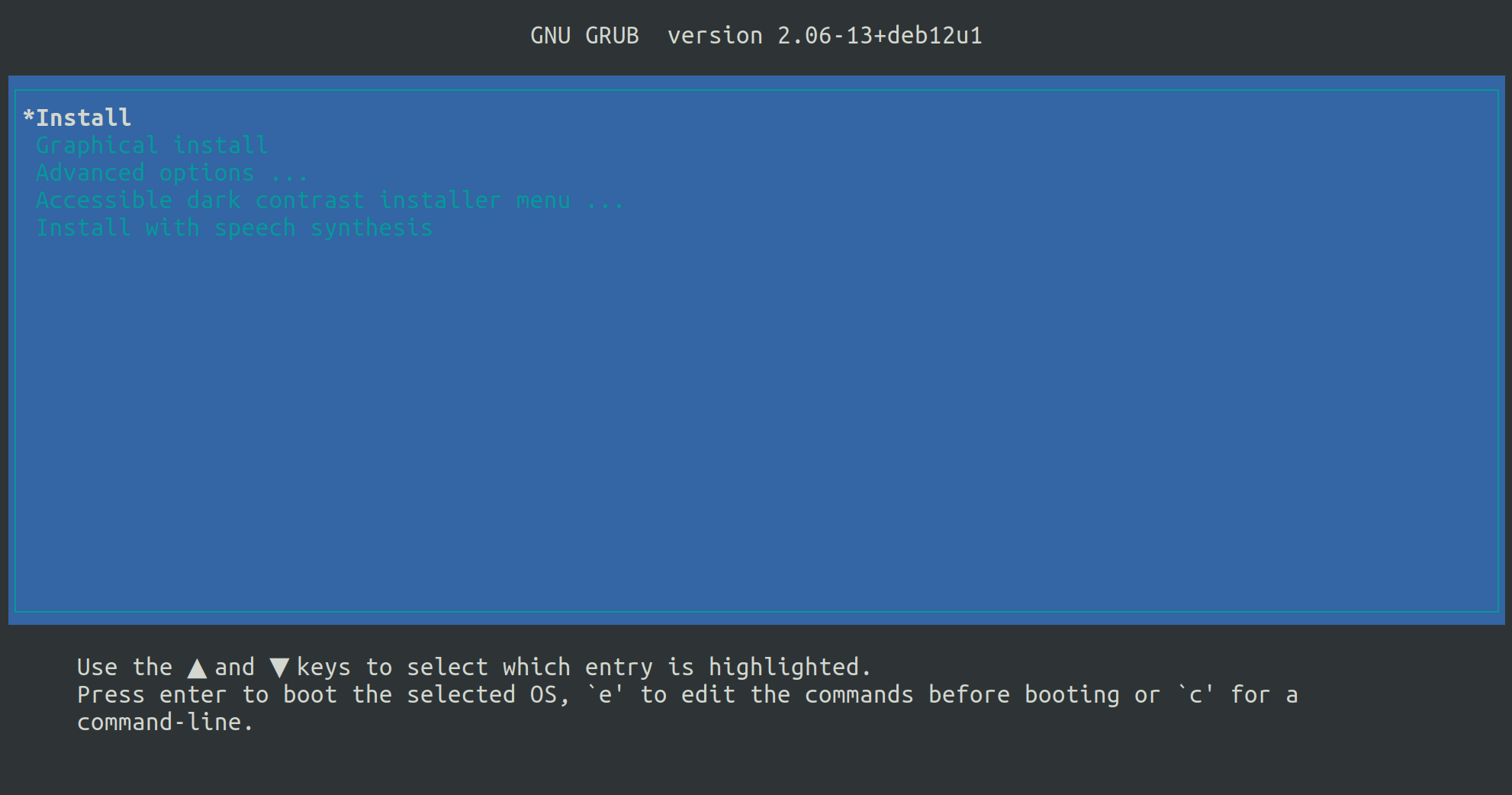
In this test we have modified the installation ISO image to add the preconfiguration file preseed.cfg inside it. This required editing the grub.cfg file inside the ISO image to select starting the unattended installation from the preconfiguration file.

Distro installation

The firmware flash images need to be recreated with the following command:

kas shell -c "bitbake firmware-fvp-rd-aspen -C deploy"

To run the configuration menu:

kas menu arm-zena-css/Kconfig

To build the Arm SystemReady Devicetree Linux distros installation tests:

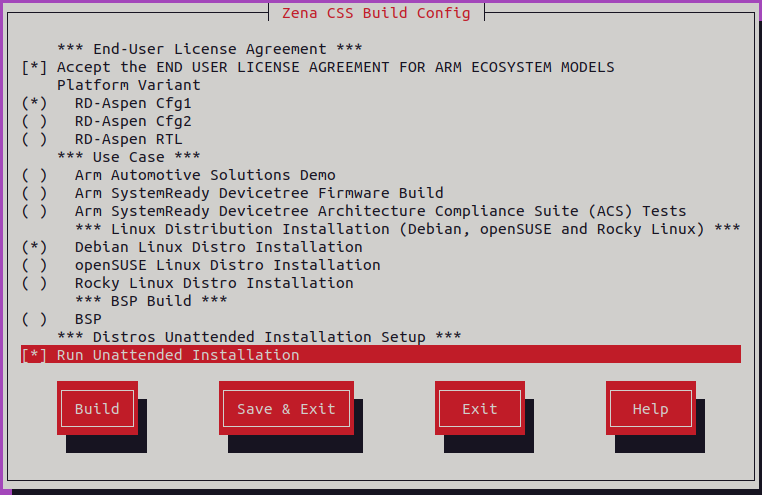
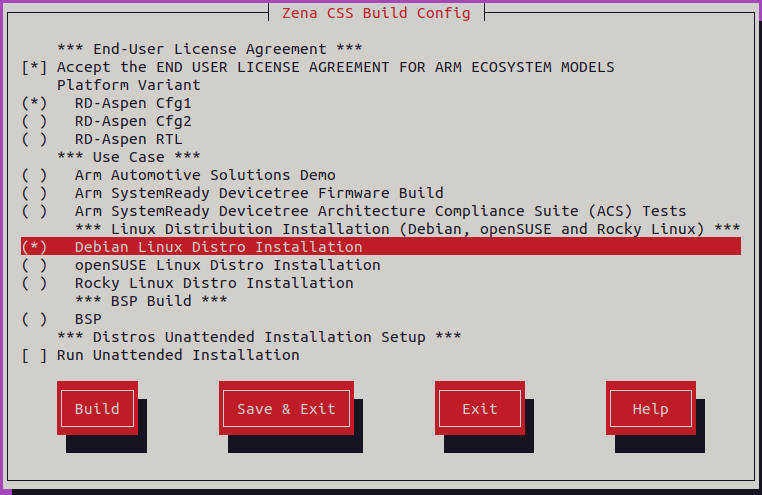
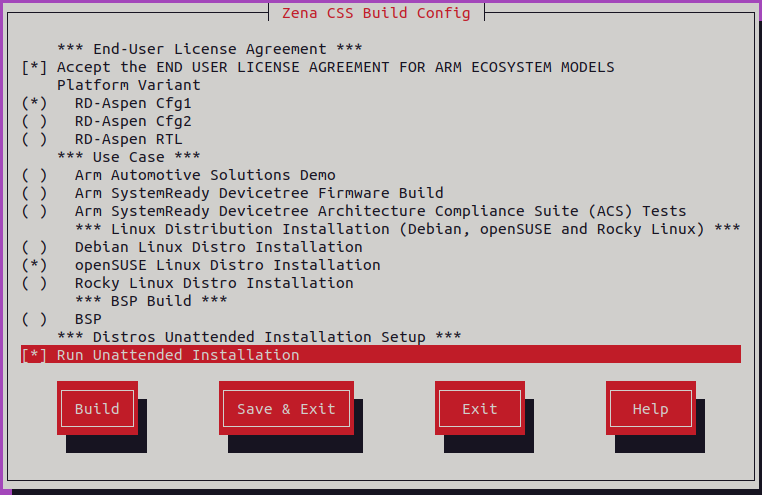
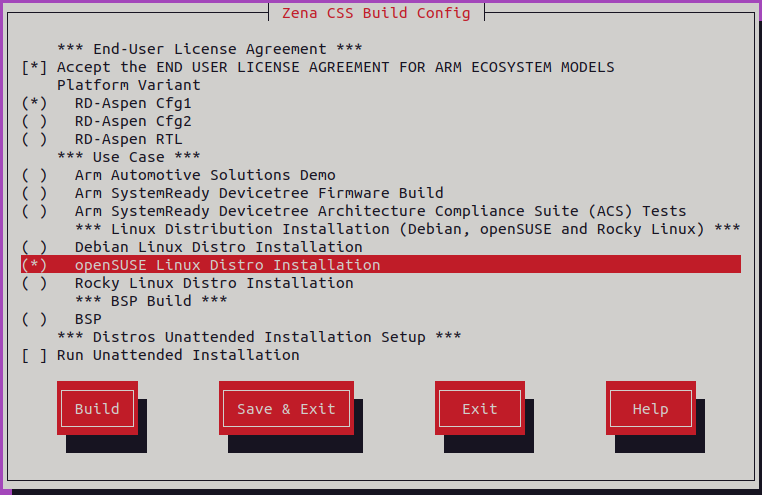
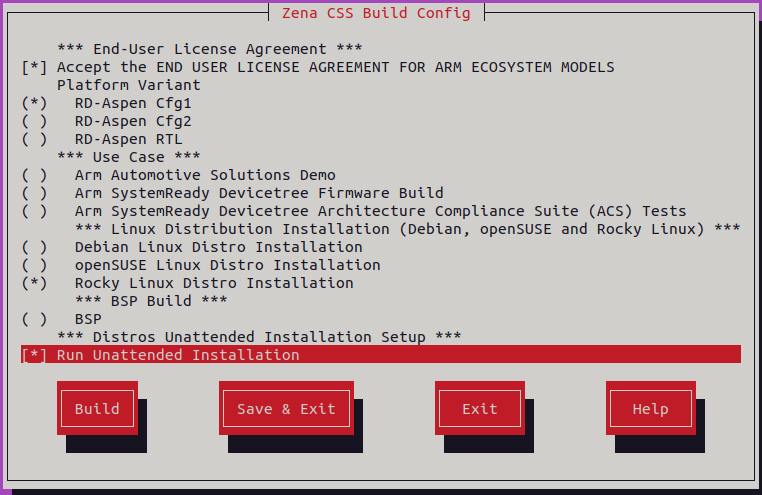
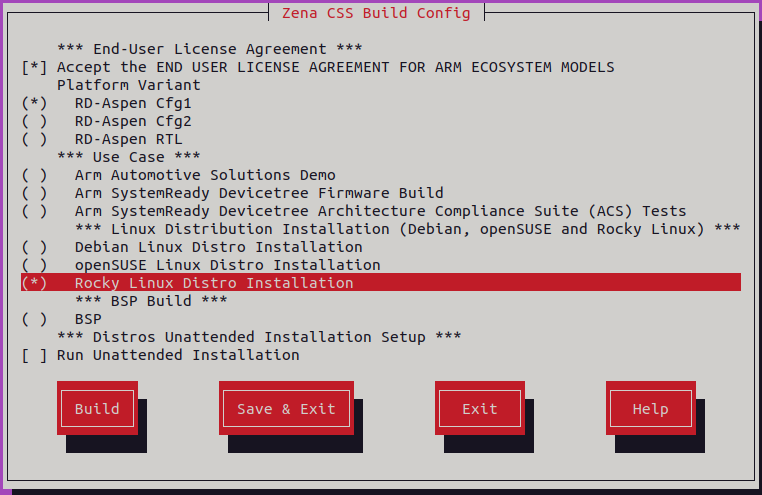
  1. Select Debian Linux Distro Installation under Linux Distribution Installation (Debian, openSUSE and Rocky Linux) from the Use Case menu.

  2. Select Distros Unattended Installation Setup > Run Unattended Installation.

  3. Select Build.

Arm Zena CSS Build Configuration Menu - Debian Linux Distro Installation

Fig. 5 Arm Zena CSS Build Configuration Menu - Debian Linux Distro Installation


A similar output to the following indicates when the installation is finished, which will take around 3 hours:

Transitioned to on
Installation status: Scanning installation media...
Installation status: Detecting network hardware...
Installation status: Installing the base system...
Installation status: Installing GRUB...
Installation status: Finishing the installation...
Transitioned to linux
Installation status: Debian installation finished successfully.
Transitioned to off
RESULTS:
RESULTS - arm_systemready_debian_unattended.SystemReadyDebianUnattendedTest.test_debian_unattended: PASSED (5512.47s)
RESULTS - arm_systemready_debian_unattended.SystemReadyDebianUnattendedTest.test_linux_sniff: PASSED (692.62s)
SUMMARY:
arm-systemready-linux-distros-debian () - Ran 2 tests in 6205.086s
arm-systemready-linux-distros-debian - OK - All required tests passed (successes=2, skipped=0, failures=0, errors=0)
  • Log in

    After the installation is finished, run the following command to log into the Linux shell:

    kas shell -c "../layers/meta-arm/scripts/runfvp -t tmux --verbose"
    

    Log into the Linux shell with the user created during the installation using the username user and the password unsafe.

Note

An SCMI related message may be observed when booting into the operating system after a successful installation. This message does not indicate a failure in the installation process or in the installed image. If the message is displayed before the login prompt, press Enter to return to the login prompt and continue logging in.

  • Terminate the FVP

    To shut down the FVP and terminate the emulation automatically, run the following command.

    sudo shutdown now
    

    The below message indicates the shutdown process is complete.

    reboot: Power down
    

    Subsequently running the FVP will boot into Debian.

Distro manual installation

To install Debian, see the Debian GNU/Linux Installation Guide.

Distro installation media preparation

The firmware flash images need to be recreated with the following command:

kas shell -c "bitbake firmware-fvp-rd-aspen -C deploy"

To run the configuration menu:

kas menu arm-zena-css/Kconfig

To build the Arm SystemReady Devicetree Linux distros installation tests:

  1. Select Use Case > Linux Distribution Installation (Debian, openSUSE and Rocky Linux) > Debian Linux Distro Installation.

  2. Select Build.

Arm Zena CSS Build Configuration Menu - Debian Linux Distro Installation

Fig. 6 Arm Zena CSS Build Configuration Menu - Debian Linux Distro Installation


Distro installation

Run the following command to start the installation:

kas shell -c "../layers/meta-arm/scripts/runfvp -t tmux --verbose"

The whole process of installing Debian will probably take about 5 hours. The installation process begins when you see the following:

Grub Install Options Menu - Debian Linux Distro Installation

Fig. 7 Grub Install Options Menu - Debian Linux Distro Installation

Select Install to start the installation process. After selecting Install, a sequence of graphical installer windows is displayed, prompting for installation preferences. You may choose the appropriate options in these windows based on your requirements. For more information, refer to Debian GNU/Linux Installation Guide.

  • Log in

    When the installation reaches the final Finishing the installation phase, you will need to wait some time to finish the remaining tasks, and then it will automatically reboot into the installed OS. You can log into the Linux shell with the user created during installation.

Note

An SCMI related message may be observed when booting into the operating system after a successful installation. This message does not indicate a failure in the installation process or in the installed image. If the message is displayed before the login prompt, press Enter to return to the login prompt and continue logging in to the operating system.

  • Terminate the FVP

    To shut down the FVP and terminate the emulation automatically, log into the Linux shell as the root user then run the following command:

    shutdown now
    

    The below message shows that the shutdown process is complete:

    reboot: Power down
    

    Subsequently running the FVP will boot into Debian.

openSUSE

Distro unattended installation

In this test we have modified the installation ISO image to add the profile configuration file inside it. This required adding the profile.json file inside the ISO image to locate the profile configuration file during installation.

Distro installation

The firmware flash images need to be recreated with the following command:

kas shell -c "bitbake firmware-fvp-rd-aspen -C deploy"

To run the configuration menu:

kas menu arm-zena-css/Kconfig

To build the Arm SystemReady Devicetree Linux distros installation tests:

  1. Select Use Case > Linux Distribution Installation (Debian, openSUSE and Rocky Linux) > openSUSE Linux Distro Installation.

  2. Select Distros Unattended Installation Setup > Run Unattended Installation.

  3. Select Build.

Arm Zena CSS Build Configuration Menu - openSUSE Linux Distro Installation

Fig. 8 Arm Zena CSS Build Configuration Menu - openSUSE Linux Distro Installation


This installation will take around 3 hours to complete. A similar output to the following shows when the installation is finished:

Transitioned to on
Installation status: Loading the kernel, initrd and basic drivers...
Installation status: Agama Installer has successfully booted...
Installation status: Logged into Agama installer as root...
Installation status: JSON profile provided is valid...
Installation status: JSON profile is loaded for installation...
Installation status: Initiating installation...
Installation status: Preparing disks...
Installation status: Installing software...
Installation status: Configuring the system...
Installation status: Finishing the installation...
Transitioned to linux
Installation status: openSUSE installation finished successfully.
Transitioned to off
RESULTS:
RESULTS - arm_systemready_opensuse_unattended.SystemReadyOpenSUSEUnattendedTest.test_linux_sniff: PASSED (107.09s)
RESULTS - arm_systemready_opensuse_unattended.SystemReadyOpenSUSEUnattendedTest.test_opensuse_unattended: PASSED (10064.97s)
SUMMARY:
arm-systemready-linux-distros-opensuse () - Ran 2 tests in 10172.055s
arm-systemready-linux-distros-opensuse - OK - All required tests passed (successes=2, skipped=0, failures=0, errors=0)
  • Log in

After the installation is finished, run the following command to log into the Linux shell:

kas shell -c "../layers/meta-arm/scripts/runfvp -t tmux --verbose"

Log into the Linux shell with the user created during the installation using the username user and the password unsafe.

  • Terminate the FVP

    To shut down the FVP and terminate the emulation automatically, run the following command:

    sudo shutdown now
    

    The below message shows that the shutdown process is complete:

    reboot: Power down
    

    Subsequently running the FVP will boot into openSUSE.

Distro manual installation

To install openSUSE, see the openSUSE Installation Guide.

Distro installation media preparation

The firmware flash images need to be recreated with the following command:

kas shell -c "bitbake firmware-fvp-rd-aspen -C deploy"

To run the configuration menu:

kas menu arm-zena-css/Kconfig

To build the Arm SystemReady Devicetree Linux distros installation tests:

  1. Select Use Case > Linux Distribution Installation (Debian, openSUSE and Rocky Linux) > openSUSE Linux Distro Installation.

  2. Unselect Distros Unattended Installation Setup > Run Unattended Installation.

  3. Select Build.

Arm Zena CSS Build Configuration Menu - openSUSE Linux Distro Installation

Fig. 9 Arm Zena CSS Build Configuration Menu - openSUSE Linux Distro Installation


Run the following command to start the installation:

kas shell -c "../layers/meta-arm/scripts/runfvp -t tmux --verbose"

The whole process of installing openSUSE will take several hours. The install process begins when you see the following:

Agama Installer Options Menu - openSUSE Linux Distro Installation

Fig. 10 Agama Installer Options Menu - openSUSE Linux Distro Installation


Select Install Leap 16.0 (aarch64) to start the installation process.

  • Boot Agama installer

    When the following message pops up, it means you have successfully booted into the Agama Installer:

    Welcome to Agama Installer
    

    When the login prompt appears, log in as root using the randomly generated password displayed in the terminal. The appearance of the following message after login indicates that the installation was successful:

    Have a lot of fun...
    
  • Configuration profile

    You need to create a working configuration profile for installation. Refer to openSUSE Agama Configuration to understand how to work with the configuration profiles.

    Note

    Please provide the relative path with the configuration profile name in below commands. Refer to openSUSE Agama Configuration for more information.

    Once you have a working configuration profile, execute the following commands on Agama CLI:

    • Validate the configuration profile:

      agama config validate <PATH_TO_PROFILE>
      
    • Load the configuration profile:

      agama config load <PATH_TO_PROFILE>
      
  • Installation Process

    Execute the following commands on Agama CLI:

    • Start the installation:

      agama install
      
    • Finish the installation:

      agama finish
      
  • Log in

    When the GRUB menu pops up, select “openSUSE Leap 16.0” to boot into the system. Log into the Linux shell with the user created via configuration profile.

  • Terminate the FVP

    To shut down the FVP and terminate the emulation automatically, run the following command:

    sudo shutdown now
    

    The below message shows that the shutdown process is complete:

    reboot: Power down
    

    Subsequently running the FVP will boot into openSUSE.

Rocky Linux

Distro unattended installation

In this test we have modified the installation ISO image to add the kickstart configuration file ks.cfg inside it. This required editing the grub.cfg file inside the ISO image to locate the kickstart configuration file.

Distro installation

The firmware flash images need to be recreated with the following command:

kas shell -c "bitbake firmware-fvp-rd-aspen -C deploy"

To run the configuration menu:

kas menu arm-zena-css/Kconfig

To build the Arm SystemReady Devicetree Linux distros installation tests:

  1. Select Use Case > Linux Distribution Installation (Debian, openSUSE and Rocky Linux) > Rocky Linux Distro Installation.

  2. Select Distros Unattended Installation Setup > Run Unattended Installation.

  3. Select Build.

Arm Zena CSS Build Configuration Menu - Rocky Linux Distro Installation

Fig. 11 Arm Zena CSS Build Configuration Menu - Rocky Linux Distro Installation


This installation will take around 8 hours to complete. A similar output to the following shows when the installation is finished:

Transitioned to on
Transitioned to on
Installation status: Loading the installer, kernel and initrd...
Installation status: Setting up the installation environment...
Installation status: Installing the software packages...
Installation status: Rocky installation finished successfully.
Transitioned to off
RESULTS:
RESULTS - arm_systemready_rocky_unattended.SystemReadyRockyUnattendedTest.test_linux_sniff: PASSED (837.95s)
RESULTS - arm_systemready_rocky_unattended.SystemReadyRockyUnattendedTest.test_rocky_unattended: PASSED (27957.09s)
SUMMARY:
arm-systemready-linux-distros-rocky () - Ran 2 tests in 28795.040s
arm-systemready-linux-distros-rocky - OK - All required tests passed (successes=2, skipped=0, failures=0, errors=0)
  • Log in

    After the installation is finished, run the following command to log into the Linux shell:

    kas shell -c "../layers/meta-arm/scripts/runfvp -t tmux --verbose"
    

    Log into the Linux shell with the user created during the installation using the username user and the password unsafe.

  • Terminate the FVP

    To shut down the FVP and terminate the emulation automatically, run the following command:

    sudo shutdown now
    

    The below message shows that the shutdown process is complete:

    reboot: Power down
    

    Subsequently running the FVP will boot into Rocky Linux.

Distro manual installation

To install Rocky Linux, see the Rocky Linux Installation Guide.

Distro installation media preparation

The firmware flash images need to be recreated with the following command:

kas shell -c "bitbake firmware-fvp-rd-aspen -C deploy"

To run the configuration menu:

kas menu arm-zena-css/Kconfig

To build the Arm SystemReady Devicetree Linux distros installation tests:

  1. Select Use Case > Linux Distribution Installation (Debian, openSUSE and Rocky Linux) > Rocky Linux Distro Installation.

  2. Unselect Distros Unattended Installation Setup > Run Unattended Installation.

  3. Select Build.

Arm Zena CSS Build Configuration Menu - Rocky Linux Distro Installation

Fig. 12 Arm Zena CSS Build Configuration Menu - Rocky Linux Distro Installation


Distro installation

Run the following command to start the installation:

kas shell -c "../layers/meta-arm/scripts/runfvp -t tmux --verbose"

The whole process of installing Rocky Linux will probably take about 12 hours. The installation process begins when you see the following:

Grub Install Options Menu - Rocky Linux Distro Installation

Fig. 13 Grub Install Options Menu - Rocky Linux Distro Installation

Select Install Rocky Linux 10.1 to start the installation process.

Here are some tips for installing Rocky Linux:

  1. It will take a few minutes for GRUB to load the installer, kernel and initrd.

  2. When the installer has started, enter 2 to choose Use text mode.

    Starting installer, one moment...
    libreport is not available in this environment - bug reporting disabled
    anaconda 40.22.3.33-1.el10.rocky.0.3 for Rocky Linux 10.1 started.
     * installation log files are stored in /tmp during the installation
     * shell is available on TTY2 and in second TMUX pane (ctrl+b, then press 2)
     * when reporting a bug add logs from /tmp as separate text/plain attachments
    
    Wayland did not start in the expected time, falling back to text mode.
     There are multiple ways to avoid this issue:
     * Do not load the stage2 image over a slow network link.
     * Wait longer for Wayland startup with the inst.xtimeout=<SECONDS> boot option.The default is 60 seconds.
     * Load the stage2 image into memory with the rd.live.ram boot option to decrease access time.
     * Enforce text mode when installing from remote media with the inst.text boot option.
    ================================================================================
    ================================================================================
    Wayland was unable to start on your machine. Would you like to start an RDP
    session to connect to this computer from another computer and perform a
    graphical installation or continue with a text mode installation?
    
    1) Use graphical mode via Remote Desktop Protocol
    2) Use text mode
    
    Please make a selection from the above ['c' to continue, 'q' to quit, 'r' to
    refresh]: 2
    

Note

The startup warning shown above may vary depending on the graphical interface used on the system. Messages may be related to X11, Wayland, or graphical environment startup. The first option presented may also vary depending on the graphical interface. The exact graphical message is not important for this step; simply select text mode.

For more information about Wayland, visit the Wayland website.

  1. When reaching the installation menu, you will see several items marked as ! which shows that the item needs to be configured before proceeding.

    ================================================================================
    ================================================================================
    Installation
    
    1) [x] Language settings                 2) [x] Time settings
           (English (United States))                (America/Chicago timezone)
    3) [!] Installation source               4) [!] Software selection
           (Setting up installation                 (Processing...)
           source...)
    5) [!] Installation Destination          6) [x] Kdump
           (Processing...)                          (Kdump is enabled)
    7) [x] Network configuration             8) [!] Root password
           (Connected: eth0)                        (Root account is disabled)
    9) [!] User creation
           (No user will be created)
    
    Please make a selection from the above ['b' to begin installation, 'h' to help,
    'q' to quit, 'r' to refresh]:
    

    For 3) [!] Installation source, enter 3, then 1 to select CD/DVD.

    ================================================================================
    ================================================================================
    Installation source
    
    Choose an installation source type.
    1) CD/DVD
    2) local ISO file
    3) Network
    
    Please make a selection from the above ['c' to continue, 'h' to help, 'q' to
    quit, 'r' to refresh]: 1
    

    For 4) [!] Software selection, enter 4, then c to continue.

    For 5) [!] Installation Destination, enter 5, then c to select the default options.

    For 8) [!] Root password, follow the prompts to enter the password and confirm.

    After entering root password, 9) [ ] User creation becomes optional and can be skipped.

    The final configuration will appear as follows:

    ================================================================================
    ================================================================================
    Installation
    
    1) [x] Language settings                 2) [x] Time settings
           (English (United States))                (America/Chicago timezone)
    3) [x] Installation source               4) [x] Software selection
           (Local media)                            (Minimal Install)
    5) [x] Installation Destination          6) [x] Kdump
           (Automatic partitioning                  (Kdump is enabled)
           selected)
    7) [x] Network configuration             8) [x] Root password
           (Connected: eth0)                        (Root password is set)
    9) [ ] User creation
           (No user will be created)
    
    Please make a selection from the above ['b' to begin installation, 'h' to help,
    'q' to quit, 'r' to refresh]:
    

    Now enter b to start the installation.

  2. The installer is expected to stay at Configuring kernel-core.aarch64 for several hours. The installer will then verify the installed packages and continue to install the boot loader.

  3. The following error is expected while installing the boot loader. Ignore the error by responding yes and continue.

    Installing boot loader
    ================================================================================
    ================================================================================
    Question
    
    The following error occurred while installing the boot loader. The system will
    not be bootable. Would you like to ignore this and continue with installation?
    
    Failed to set new efi boot target. This is most likely a kernel or firmware bug.
    
    Please respond 'yes' or 'no': yes
    
    [anaconda]1:main* 2:shell  3:log  4:storage-log >Switch tab: Alt+Tab | Help: F1
    
  • Log in

    When the installation reaches the final Finishing the installation phase, you will need to wait some time to finish the remaining tasks. When you see the message Installation complete. Press ENTER to quit:, press enter to reboot into the installed OS. You can log into the Linux shell with the user created during installation.

  • Terminate the FVP

    To shut down the FVP and terminate the emulation automatically, log into the Linux shell as the root user then run the following command:

    shutdown now
    

    The below message shows that the shutdown process is complete:

    reboot: Power down
    

    Subsequently running the FVP will boot into Rocky Linux.

Arm SystemReady Devicetree validation

Arm SystemReady Devicetree firmware build

The Arm SystemReady Devicetree Firmware Build option just builds the Arm SystemReady Devicetree firmware.

See Arm SystemReady Devicetree for more details.

Arm Zena CSS Build Configuration Menu - Arm SystemReady Devicetree Firmware Build

Fig. 14 Arm Zena CSS Build Configuration Menu - Arm SystemReady Devicetree Firmware Build


Build

To run the configuration menu:

kas menu arm-zena-css/Kconfig

To build the Arm SystemReady Devicetree firmware image:

  1. Select Use Case > Arm SystemReady Devicetree Firmware Build.

  2. Select Build.

The firmware images listed below can be found in the directory build/tmp_systemready/deploy/images/fvp-rd-aspen/:

  • ap-flash-image.img

  • combined_provisioning_message.bin

  • rse-flash-image.img

  • rse-otp-image.img

  • rse-rom-image.img

Arm SystemReady Devicetree Architecture Compliance Suite (ACS) tests

The ACS for the Arm SystemReady Devicetree compliance is delivered through a live OS image, which enables the basic automation to run the tests.

The system boots with the ACS live OS image and the ACS tests run automatically after the system boots. See ACS tests for more details.

Note

For a full SR compliance report on the Reference Software Stack, the Debian, openSUSE, and Rocky unattended installation use cases must be run before the ACS tests. You should not delete or modify the build directory between the unattended installations and the ACS tests, otherwise the results for SR compliance will be inaccurate. If either unattended installation is run multiple times, only the results from the most recent installation will be considered. See ACS tests for more information.

Build and Run automated validation

To run the configuration menu:

kas menu arm-zena-css/Kconfig

To build and run the Arm SystemReady Devicetree ACS tests:

  1. Select Use Case > Arm SystemReady Devicetree Validation > Arm SystemReady Devicetree Architecture Compliance Suite (ACS) Tests.

  2. Select Build.

A similar output to the following is printed out:

NOTE: Executing Tasks
Creating terminal default on terminal_ns_uart0
Creating terminal tf-a on terminal_sec_uart
Creating terminal rse on terminal_uart
Creating terminal safety_island_c0 on terminal_uart_si_cluster0
Transitioned to on
Test Group (PlatformSpecificElements): FAILED
Test Group (RequiredElements): FAILED
Test Group (CheckEvent_Conf): PASSED
Test Group (CheckEvent_Func): PASSED
Test Group (CloseEvent_Func): PASSED
Test Group (CreateEventEx_Conf): PASSED
Test Group (CreateEventEx_Func): PASSED
Test Group (CreateEvent_Conf): PASSED
Test Group (CreateEvent_Func): PASSED
Test Group (RaiseTPL_Func): PASSED
...
...
ACS BBSR running
Test Group (VariableAttributes): PASSED WITH WARNINGS
Test Group (VariableUpdates): PASSED
...
Test Group (virtio_blk virtio1): vda
Test Group (virtio_blk virtio2): vdb
Test Group (virtio_blk virtio3): vdc
Test Group (virtio_blk virtio4): vdd
Linux tests complete
Transitioned to off
RESULTS:
RESULTS - arm_systemready_devicetree_acs.SystemReadyACSTest.test_acs: PASSED (9258.72s)
SUMMARY:
arm-systemready-devicetree-acs () - Ran 1 test in 9258.723s
arm-systemready-devicetree-acs - OK - All required tests passed (successes=1, skipped=0, failures=0, errors=0)

As seen in the above logs, some Test Groups are expected to fail. The following message is expected to validate this use case:

RESULTS - arm_systemready_devicetree_acs.SystemReadyACSTest.test_acs: PASSED (7626.94s)

The result files can be found in the directory below:

~/arm-auto-solutions/build/tmp_systemready/work/fvp_rd_aspen-oe-linux/arm-systemready-devicetree-acs/3.1.1/testimage/acs_results

Note

Running the ACS tests more than once will have them resume from where they last stopped. Additionally, consecutive runs are not supported by the ACS logs; it will result in a failure after the end of the tests. To run the ACS tests again, use the following to refresh the firmware images in flash and re-start the entire ACS test suite properly:

kas shell -c "bitbake firmware-fvp-rd-aspen -C deploy"
kas shell -c "bitbake arm-systemready-devicetree-acs -C unpack"

Note

The ACS tests take hours to complete. The actual time taken will vary depending on the performance of the build host. The default timeout setting for the tests is 12 hours for an x86_64 host or 24 hours for an aarch64 host. If a timeout failure occurs, increase the timeout setting and re-run the tests with the following command on the build host terminal. The example command below changes the timeout setting to 16 hours:

TEST_OVERALL_TIMEOUT="\${@16*60*60}" kas shell -c "bitbake arm-systemready-devicetree-acs -C unpack"

Note

There is a rare known failure where a timeout might occur during test execution.

See ACS tests for an explanation on how the ACS tests are set up and how they work in the Reference Software Stack.

Connectivity demo

Heterogeneous Inter-Processor Communication (HIPC) Demo

The HIPC demo validates the networking implementation between the Primary Compute and Safety Island Cluster 1 (SI CL1), following the design described in Heterogeneous Inter-Processor Communication (HIPC).

Build

To run the configuration menu:

kas menu arm-zena-css/Kconfig

To build a Baremetal Architecture image:

  1. Select Arm Automotive Solutions Demo from the Use-Case menu.

  2. Select Baremetal from the Reference Software Stack Architecture menu.

  3. Select RD-Aspen Cfg2 from the Platform Variant menu.

  4. Select Build.

Run the FVP

After the build is finished, run the following command to start the FVP and run the software reference stack:

kas shell -c "../layers/meta-arm/scripts/runfvp -t tmux --verbose"

Log into the Linux shell with the username root without password.

Test HIPC
Verify HIPC connectivity

Verify basic network connectivity between the Primary Compute and Safety Island CL1 over HIPC.

  1. Run the following command on Primary Compute (Linux) to ping Safety Island CL1:

    ping 192.168.1.1 -c 1
    

The output shows that the ping command succeeds with 0% packet loss, confirming connectivity.

PING 192.168.1.1 (192.168.1.1): 56 data bytes
64 bytes from 192.168.1.1: seq=0 ttl=64 time=0.138 ms

--- 192.168.1.1 ping statistics ---
1 packets transmitted, 1 packets received, 0% packet loss
round-trip min/avg/max = 0.138/0.138/0.138 ms
  1. Run the following command on Safety Island CL1 (Zephyr) to ping the Primary Compute:

net ping 192.168.1.2 -c 1

The output shows that the ping command succeeds, confirming bidirectional connectivity.

PING 192.168.1.2
28 bytes from 192.168.1.2 to 192.168.1.1: icmp_seq=1 ttl=64 time=0.11 ms
Verify UDP communication

Verify UDP data transfer over HIPC between the Primary Compute and Safety Island CL1.

Zephyr as UDP server
  1. Run the following command on Safety Island CL1 (Zephyr) to start the UDP server:

zperf udp download

The output shows that the UDP server starts and listens on port 5001.

UDP server started on port 5001
  1. Run the following command on Primary Compute (Linux) to send UDP traffic:

Use the iperf tool to send UDP traffic. The -u option enables UDP mode, and the command sends data to 192.168.1.1 on port 5001 for 3 seconds, with a packet size of 1438 bytes and a target bandwidth of 100 Kbps.

iperf -u -c 192.168.1.1 -t 3 -b 100K -l 1438 -P 1

The output shows that the UDP packets are transmitted successfully with no packet loss.

------------------------------------------------------------
Client connecting to 192.168.1.1, UDP port 5001
Sending 1438 byte datagrams, IPG target: 0.00 us (kalman adjust)
UDP buffer size:  208 KByte (default)
------------------------------------------------------------
[  1] local 192.168.1.2 port 60661 connected with 192.168.1.1 port 5001
[ ID] Interval       Transfer     Bandwidth
[  1] 0.00-3.15 sec  40.7 KBytes   106 Kbits/sec
[  1] Sent 30 datagrams
[  1] Server Report:
[ ID] Interval       Transfer     Bandwidth        Jitter   Lost/Total Datagrams
[  1] 0.00-3.94 sec  39.3 KBytes  81.8 Kbits/sec   0.000 ms 0/28 (0%)
  1. Run the following command on Safety Island CL1 (Zephyr) to stop the UDP server:

zperf udp download stop

The output shows that the UDP server stops successfully.

UDP server stopped
Linux as UDP server
  1. Run the following command on Primary Compute (Linux) to start the UDP server:

iperf -u -s -P 1

The output shows that the server listens on port 5001.

------------------------------------------------------------
Server listening on UDP port 5001
UDP buffer size:  208 KByte (default)
  1. Run the following command on Safety Island CL1 (Zephyr) to send UDP traffic:

Use the zperf tool to send UDP traffic. The udp upload command runs in client mode and sends data to 192.168.1.2 on port 5001 for 3 seconds, with a packet size of 1 KB and a target bandwidth of 100 Kbps.

zperf udp upload 192.168.1.2 5001 3 1k 100K

The output shows that the UDP data is transmitted successfully with no packet loss.

Remote port is 5001
Connecting to 192.168.1.2
Duration:       3.00 s
Packet size:    1000 bytes
Rate:           100 kbps
Starting...
Rate:           100 Kbps
Packet duration 78 ms
-
Upload completed!
Statistics:             server  (client)
Duration:               2.43 s  (3.13 s)
Num packets:            39      (39)
Num packets out order:  0
Num packets lost:       0
Jitter:                 10.10 ms
Rate:                   128 Kbps        (99 Kbps)

Meanwhile, on the Primary Compute terminal, the following traffic information will be seen:

------------------------------------------------------------
[  1] local 192.168.1.2 port 5001 connected with 192.168.1.1 port 41418
[ ID] Interval       Transfer     Bandwidth        Jitter   Lost/Total Datagrams
[  1] 0.00-2.43 sec  38.1 KBytes   128 Kbits/sec  10.109 ms 0/39 (0%)
Verify TCP communication

Verify TCP data transfer between Primary Compute and Safety Island CL1 over HIPC.

Zephyr as TCP server
  1. Run the following command on Safety Island CL1 (Zephyr) to start the TCP server:

zperf tcp download

The output shows that the TCP server starts and listens on port 5001.

TCP server started on port 5001
  1. Run the following command on Primary Compute (Linux) to send TCP traffic:

Use the iperf tool on Linux to send TCP traffic. In this command, -c 192.168.1.1 specifies the destination IP address (server), -t 1 sets the test duration to 1 second, and -P 1 runs a single parallel stream.

iperf -c 192.168.1.1 -t 1 -P 1

The output shows that a TCP connection is established and data is transferred successfully.

------------------------------------------------------------
Client connecting to 192.168.1.1, TCP port 5001
TCP window size: 16.0 KByte (default)
------------------------------------------------------------
[  1] local 192.168.1.2 port 33418 connected with 192.168.1.1 port 5001
[ ID] Interval       Transfer     Bandwidth
[  1] 0.00-1.00 sec   108 MBytes   906 Mbits/sec

Note

The TCP test can take a few minutes to complete.

  1. Run the following command on Safety Island CL1 (Zephyr) to stop the TCP server:

zperf tcp download stop

The output shows that the TCP server stops successfully.

TCP server stopped
Linux as TCP server
  1. Run the following command on Primary Compute (Linux) to start the TCP server:

iperf -s -P 1

The output shows that the server listens on port 5001.

------------------------------------------------------------
Server listening on TCP port 5001
TCP window size:  128 KByte (default)
------------------------------------------------------------
[  1] local 192.168.1.2 port 5001 connected with 192.168.1.1 port 35099
[ ID] Interval       Transfer     Bandwidth
[  1] 0.00-0.80 sec  41.5 MBytes   436 Mbits/sec
  1. Run the following command on Safety Island CL1 (Zephyr) to send TCP traffic:

Use the zperf tool to send TCP traffic. The tcp upload command runs in client mode and sends data to 192.168.1.2 on port 5001 for 1 second, with a packet size of 1 KB.

zperf tcp upload 192.168.1.2 5001 1 1k

The output shows that the TCP data transfer completes successfully with no errors.

Remote port is 5001
Connecting to 192.168.1.2
Duration:       1.00 s
Packet size:    1000 bytes
Rate:           10 kbps
Starting...
-
Upload completed!
Duration:       1.00 s
Num packets:    43508
Num errors:     0 (retry or fail)
Rate:           348.06 Mbps
  1. Stop the TCP server on Primary Compute (Linux).

Press Ctrl+C in the terminal running iperf.

Note

The TCP test can take a few minutes to complete.

See HIPC Baremetal Network Tests for more details on how to trigger the automated validation.

Maintenance and platform-specific flows

Automated validation

Note

When automated validation runs with RD-Aspen CFG1, all Safety Island Cluster 1 related tests are skipped; as a result, the Baremetal, Virtualization, and BSP suites are smaller than in CFG2, which includes those Safety Island Cluster 1 checks. For example, test_10_safety_island.SafetyIslandTestBase.test_cluster1 and test_00_aspen_boot.AspenBootTest.test_safety_island_cl1 will not be executed in RD-Aspen CFG1 config.

Baremetal Architecture
kas menu arm-zena-css/Kconfig
Arm Zena CSS Run Automated Validation Menu

Fig. 15 Arm Zena CSS Run Automated Validation Menu


To start Automated Validation

  1. Select Arm Automotive Solutions Demo

  2. Select RD-Aspen CFG2

  3. Select Baremetal

  4. Select Run Automated Validation

  5. Select Build option and press enter.

RESULTS:
RESULTS - test_00_rse.RseTest.test_measured_boot: PASSED (14.95s)
RESULTS - test_00_rse.RseTest.test_normal_boot: PASSED (15.22s)
RESULTS - test_00_rse.RseTest.test_scmi_poweroff: PASSED (324.16s)
RESULTS - test_00_rse.RseTest.test_scmi_reboot: PASSED (575.41s)
RESULTS - test_00_secure_partition.OpteeTest.test_optee_normal: PASSED (10.91s)
RESULTS - test_10_safetydiagnostics_ssu_fmu.SafetyDiagnosticsTestSSUFMU.test_safety_island_fmu: PASSED (3.12s)
RESULTS - test_10_safetydiagnostics_ssu_fmu.SafetyDiagnosticsTestSSUFMU.test_safety_island_ssu: PASSED (2.70s)
RESULTS - test_99_uefi_secure_boot.UEFI_Secure_Boot_Test.test_unsigned_kernel_image: PASSED (329.51s)
RESULTS - test_100_fwu.SecureFirmwareUpdateTest.test_securefirmwareupdate_aspen: PASSED (846.43s)
RESULTS - test_10_linuxboot.LinuxBootTest.test_linux_boot: PASSED (228.51s)
RESULTS - test_10_linuxlogin.LinuxLoginTest.test_linux_login: PASSED (294.73s)
RESULTS - test_10_pfdi.PFDITest.test_init_systemd_service: PASSED (15.90s)
RESULTS - test_10_pfdi.PFDITest.test_pfdi_app: PASSED (21.53s)
RESULTS - test_10_pfdi.PFDITest.test_pfdi_app_monitoring: PASSED (0.01s)
RESULTS - test_10_pfdi.PFDITest.test_pfdi_app_monitoring_error: PASSED (24.89s)
RESULTS - test_10_pfdi.PFDITest.test_pfdi_cli: PASSED (29.57s)
RESULTS - test_10_pfdi.PFDITest.test_pfdi_cli_force_error: PASSED (3.11s)
RESULTS - test_10_pfdi.PFDITest.test_pfdi_sbistc: PASSED (49.78s)
RESULTS - test_10_pfdi_monitor_on_si.PFDISIMonitoringTest.test_si_pfdi_monitoring: PASSED (0.01s)
RESULTS - test_10_ping.ArmAutoSolutionsPingTest.test_ping: PASSED (0.00s)
RESULTS - test_10_ras_cpu.RasInjectTests.test_01_ts_ras_inject_list: PASSED (4.67s)
RESULTS - test_10_ras_cpu.RasInjectTests.test_02_ts_ras_inject_invalid_cpu_error: PASSED (4.67s)
RESULTS - test_10_ras_cpu.RasInjectTests.test_03_ts_ras_inject_usage: PASSED (4.67s)
RESULTS - test_10_ras_cpu.RasInjectTests.test_04_ts_ras_inject_correctable_cpu_error: PASSED (27.89s)
RESULTS - test_10_ras_cpu.RasInjectTests.test_05_ts_ras_inject_deferred_cpu_error: PASSED (27.88s)
RESULTS - test_10_ras_cpu.RasInjectTests.test_06_ts_ras_inject_correctable_cpu_error_10x: PASSED (189.19s)
RESULTS - test_10_ras_cpu.RasInjectTests.test_07_ts_ras_inject_uncorrectable_cpu_error: PASSED (263.12s)
RESULTS - test_10_ras_cpu.RasInjectTests.test_08_ts_ras_inject_correctable_deferred_cpu_error: PASSED (18.92s)
RESULTS - test_10_ras_cpu.RasInjectTests.test_09_journalctl_service: PASSED (2.84s)
RESULTS - test_10_safety_island.SafetyIslandTestBase.test_cluster1: PASSED (0.01s)
RESULTS - test_10_sbistc_integration.SbistcIntegrationTests.test_01_run_sbistc_once: PASSED (2.64s)
RESULTS - test_10_sbistc_integration.SbistcIntegrationTests.test_02_run_sbistc_stress: PASSED (11.83s)
RESULTS - test_10_sbistc_integration.SbistcIntegrationTests.test_03_run_invalid_command: PASSED (0.37s)
RESULTS - test_10_ssh.ArmAutoSolutionsSSHTest.test_ssh: PASSED (9.10s)
RESULTS - test_20_fvp_devices.ArmAutoSolutionsFvpDevicesTest.test_cpu_hotplug: PASSED (605.76s)
RESULTS - test_20_fvp_devices.ArmAutoSolutionsFvpDevicesTest.test_networking: PASSED (43.47s)
RESULTS - test_20_fvp_devices.ArmAutoSolutionsFvpDevicesTest.test_rtc: PASSED (13.98s)
RESULTS - test_20_fvp_devices.ArmAutoSolutionsFvpDevicesTest.test_virtiorng: PASSED (13.98s)
RESULTS - test_20_fvp_devices.ArmAutoSolutionsFvpDevicesTest.test_watchdog: PASSED (9.32s)
RESULTS - test_20_hipc_baremetal.HIPCMidBaremetalTests.test_01_mid_sanity_dt_and_shared_memory: PASSED (116.25s)
RESULTS - test_20_hipc_baremetal.HIPCMidBaremetalTests.test_02_enablement_linux_stack: PASSED (55.14s)
RESULTS - test_20_hipc_baremetal.HIPCMidBaremetalTests.test_03_memory_layout: PASSED (82.65s)
RESULTS - test_20_hipc_baremetal.HIPCMidBaremetalTests.test_04_icmp_bidirectional: PASSED (39.33s)
RESULTS - test_20_hipc_baremetal.HIPCMidBaremetalTests.test_05_udp_pc_to_cl1: PASSED (16.59s)
RESULTS - test_40_rse_fw_encryption.RseFirmwareEncryptionBuildTimeTests.test_rse_fw_encryption_during_boot: PASSED (0.00s)
RESULTS - test_40_rse_fw_encryption.RseFirmwareEncryptionBuildTimeTests.test_tfm_image_encryption_buildtime: PASSED (0.76s)
RESULTS - test_50_cryptographic_extension.CryptographicExtensionTest.test_cryptographic_extension_performance: PASSED (135.71s)
RESULTS - test_50_trusted_services.ArmAutoSolutionsTrustedServices.test_03_psa_crypto_api_test: PASSED (51.36s)
RESULTS - test_50_trusted_services.ArmAutoSolutionsTrustedServices.test_04_psa_its_api_test: PASSED (12.65s)
RESULTS - test_50_trusted_services.ArmAutoSolutionsTrustedServices.test_05_psa_ps_api_test: PASSED (59.09s)
RESULTS - test_50_trusted_services.ArmAutoSolutionsTrustedServices.test_06_psa_iat_api_test: PASSED (21.19s)
RESULTS - test_60_cpu_frequency.CPUFrequencyTest.test_cpu_frequency_policy: PASSED (127.22s)
RESULTS - test_60_cpu_frequency.CPUFrequencyTest.test_cpufreq_affected_cpus_per_policy: PASSED (72.70s)
RESULTS - test_60_cpu_frequency.CPUFrequencyTest.test_cpufreq_default_governors: PASSED (72.70s)
RESULTS - test_60_cpu_frequency.CPUFrequencyTest.test_cpufreq_scaling_driver: PASSED (72.70s)
RESULTS - test_60_cpu_frequency.CPUFrequencyTest.test_cpufreq_set_governors: PASSED (727.00s)
RESULTS - test_60_cpu_frequency.CPUFrequencyTest.test_current_frequency_per_governor: PASSED (1017.80s)
RESULTS - test_60_cpu_frequency.CPUFrequencyTest.test_update_invalid_governor: PASSED (460.23s)
RESULTS - test_60_cpu_frequency.CPUFrequencyTest.test_update_min_max_scaling_frequencies_negative: PASSED (436.19s)
RESULTS - test_60_cpu_frequency.CPUFrequencyTest.test_update_scaling_max_frequencies: PASSED (508.89s)
RESULTS - test_60_cpu_frequency.CPUFrequencyTest.test_update_scaling_min_frequencies: PASSED (218.10s)
RESULTS - test_60_cpuidle_cstates.CPUIdleTest.test_cpuidle_c_states: PASSED (1088.62s)
RESULTS - test_60_cpuidle_cstates.CPUIdleTest.test_cpuidle_governor_switching: PASSED (226.80s)
RESULTS - test_60_cpuidle_cstates.CPUIdleTest.test_cpuidle_governors: PASSED (136.08s)
RESULTS - test_60_cpuidle_cstates.CPUIdleTest.test_cstate_residency_latency: PASSED (7012.28s)
RESULTS - test_60_cpuidle_cstates.CPUIdleTest.test_cstates_default_status: PASSED (2177.27s)
RESULTS - test_60_cpuidle_cstates.CPUIdleTest.test_disable_cstate: PASSED (11366.73s)
RESULTS - test_60_cpuidle_cstates.CPUIdleTest.test_ensure_cpuidle_or_skip: PASSED (362.86s)
RESULTS - test_60_cpuidle_cstates.CPUIdleTest.test_invalid_cpuidle_governor: PASSED (158.76s)
RESULTS - test_70_mission_based_profiles.MBPPTest.test_01_script_exists_and_is_executable: PASSED (45.31s)
RESULTS - test_70_mission_based_profiles.MBPPTest.test_02_help_and_list: PASSED (81.55s)
RESULTS - test_70_mission_based_profiles.MBPPTest.test_03_dump_initial_then_set_parking_and_verify: PASSED (256.16s)
RESULTS - test_70_mission_based_profiles.MBPPTest.test_04_idempotent_all_profiles: PASSED (401.00s)
RESULTS - test_70_mission_based_profiles.MBPPTest.test_05_case_insensitive_all_profiles: PASSED (756.73s)
RESULTS - test_70_mission_based_profiles.MBPPTest.test_06_invalid_profile_selection: PASSED (190.30s)
RESULTS - test_70_mission_based_profiles.MBPPTest.test_07_toggle_all_modes: PASSED (1309.63s)
RESULTS - test_70_mission_based_profiles.MBPPTest.test_08_guard_when_not_all_cores_online: PASSED (256.03s)
RESULTS - test_70_mission_based_profiles.MBPPTest.test_09_set_governor_to_default: PASSED (203.77s)
RESULTS - test_90_ap_warm_reset.ApWarmResetFirmwareTests.test_linux_warm_reset: PASSED (575.92s)
RESULTS - test_90_ap_warm_reset.ApWarmResetFirmwareTests.test_negative_invalid_reboot_mode_value_handling: PASSED (317.59s)
RESULTS - test_991_smcf.SmcfTests.test_01_smcf_client_start: PASSED (68.47s)
RESULTS - test_991_smcf.SmcfTests.test_02_execute_smcf_test: PASSED (137.35s)
RESULTS - test_991_smcf.SmcfTests.test_03_run_smcf_3x: PASSED (379.25s)
RESULTS - test_991_smcf.SmcfTests.test_04_smcf_client_sensor_monitor: PASSED (120.62s)
RESULTS - test_992_safety_island_pfdi.SafetyIslandTestBase.test_01_pfdi_cluster_status: PASSED (0.45s)
RESULTS - test_992_safety_island_pfdi.SafetyIslandTestBase.test_02_pfdi_run_all_tests: PASSED (0.39s)
RESULTS - test_992_safety_island_pfdi.SafetyIslandTestBase.test_03_pfdi_run_block: PASSED (0.71s)
RESULTS - test_992_safety_island_pfdi.SafetyIslandTestBase.test_04_pfdi_run_invalid_params: PASSED (1.56s)
RESULTS - test_992_safety_island_pfdi.SafetyIslandTestBase.test_05_pfdi_run_block_valid: PASSED (0.71s)
RESULTS - test_992_safety_island_pfdi.SafetyIslandTestBase.test_06_pfdi_run_range_valid: PASSED (0.45s)
RESULTS - test_992_safety_island_pfdi.SafetyIslandTestBase.test_07_pfdi_invalid_cpu_value: PASSED (0.18s)
RESULTS - test_992_safety_island_pfdi.SafetyIslandTestBase.test_08_pfdi_cpu_out_of_range: PASSED (0.17s)
RESULTS - test_992_safety_island_pfdi.SafetyIslandTestBase.test_09_pfdi_count_blocks: PASSED (0.42s)
RESULTS - test_992_safety_island_pfdi.SafetyIslandTestBase.test_10_pfdi_count_block_parts: PASSED (0.39s)
RESULTS - test_992_safety_island_pfdi.SafetyIslandTestBase.test_11_pfdi_result: PASSED (0.40s)
RESULTS - test_992_safety_island_pfdi.SafetyIslandTestBase.test_12_pfdi_set_state_toggle: PASSED (1.36s)
RESULTS - test_992_safety_island_pfdi.SafetyIslandTestBase.test_13_pfdi_force_error_effect: PASSED (0.75s)
RESULTS - test_992_safety_island_pfdi.SafetyIslandTestBase.test_14_pfdi_multiple_runs_consistency_3x: PASSED (1.02s)
RESULTS - test_992_safety_island_pfdi.SafetyIslandTestBase.test_15_pfdi_stress_5x: PASSED (1.75s)
RESULTS - test_992_safety_island_pfdi.SafetyIslandTestBase.test_16_pfdi_info: PASSED (0.17s)
RESULTS - test_99_linuxshutdown.LinuxShutdownTest.test_linux_shutdown: PASSED (68.13s)
RESULTS - test_20_hipc_baremetal.HIPCMidBaremetalTests.test_06_tcp_pc_to_cl1: SKIPPED (0.00s)
RESULTS - test_20_hipc_baremetal.HIPCMidBaremetalTests.test_07_udp_cl1_to_pc: SKIPPED (0.00s)
RESULTS - test_20_hipc_baremetal.HIPCMidBaremetalTests.test_08_tcp_cl1_to_pc: SKIPPED (0.00s)
RESULTS - test_20_hipc_baremetal.HIPCMidBaremetalTests.test_09_boundary_payload_sizes: SKIPPED (0.00s)
RESULTS - test_20_hipc_baremetal.HIPCMidBaremetalTests.test_10_boundary_multistream: SKIPPED (0.00s)
RESULTS - test_50_trusted_services.ArmAutoSolutionsTrustedServices.test_00_ts_demo: SKIPPED (0.00s)
RESULTS - test_50_trusted_services.ArmAutoSolutionsTrustedServices.test_02_ts_uefi_test: SKIPPED (0.00s)
RESULTS - test_50_trusted_services.ArmAutoSolutionsTrustedServices.test_07_spmc_test: SKIPPED (0.00s)
RESULTS - test_50_trusted_services.ArmAutoSolutionsTrustedServices.test_09_ts_service_grp_check: SKIPPED (0.00s)
RESULTS - test_50_trusted_services.ArmAutoSolutionsTrustedServices.test_10_fwu_service_tests: SKIPPED (0.00s)
RESULTS - test_50_trusted_services.ArmAutoSolutionsTrustedServices.test_11_ps_service_tests: SKIPPED (0.00s)
RESULTS - test_50_trusted_services.ArmAutoSolutionsTrustedServices.test_12_its_service_tests: SKIPPED (0.00s)
RESULTS - test_50_trusted_services.ArmAutoSolutionsTrustedServices.test_14_attestation_service_tests: SKIPPED (0.00s)
RESULTS - test_50_trusted_services.ArmAutoSolutionsTrustedServices.test_15_crypto_service_tests: SKIPPED (0.00s)
RESULTS - test_90_ap_warm_reset.ApWarmResetFirmwareTests.test_stability_alternate_warm_cold_linux: SKIPPED (0.00s)
RESULTS - test_90_ap_warm_reset.ApWarmResetFirmwareTests.test_stability_linux_warm_reset_3x: SKIPPED (0.00s)
RESULTS - test_90_ap_warm_reset.ApWarmResetFirmwareTests.test_stability_uboot_warm_reset_3x: SKIPPED (0.00s)
SUMMARY:
baremetal-image () - Ran 118 tests in 36060.328s
baremetal-image - OK - All required tests passed (successes=101, skipped=17, failures=0, errors=0)
NOTE: Tasks Summary: Attempted 6591 tasks of which 6538 didn't need to be rerun and all succeeded.
Virtualization Architecture

Run the following to open the configuration menu:

kas menu arm-zena-css/Kconfig
Arm Zena CSS Run Automated Validation Menu

Fig. 16 Arm Zena CSS Run Automated Validation Menu


To start Automated Validation

  1. Select Arm Automotive Solutions Demo

  2. Select RD-Aspen CFG2

  3. Select Virtualization

  4. Select Run Automated Validation

  5. Select Build option and press enter.

RESULTS:
RESULTS - test_10_safetydiagnostics_ssu_fmu.SafetyDiagnosticsTestSSUFMU.test_safety_island_fmu: PASSED (6.08s)
RESULTS - test_10_safetydiagnostics_ssu_fmu.SafetyDiagnosticsTestSSUFMU.test_safety_island_ssu: PASSED (4.76s)
RESULTS - test_10_linuxboot.LinuxBootTest.test_linux_boot: PASSED (331.29s)
RESULTS - test_10_linuxlogin.LinuxLoginTest.test_linux_login: PASSED (126.89s)
RESULTS - test_10_ping.ArmAutoSolutionsPingTest.test_ping: PASSED (0.00s)
RESULTS - test_10_safety_island.SafetyIslandTestBase.test_cluster1: PASSED (0.00s)
RESULTS - test_10_ssh.ArmAutoSolutionsSSHTest.test_ssh: PASSED (1.80s)
RESULTS - test_40_virtualization.FvpDevicesTestDomU1.test_cpu_hotplug: PASSED (83.75s)
RESULTS - test_40_virtualization.FvpDevicesTestDomU1.test_networking: PASSED (28.46s)
RESULTS - test_40_virtualization.FvpDevicesTestDomU2.test_cpu_hotplug: PASSED (27.91s)
RESULTS - test_40_virtualization.FvpDevicesTestDomU2.test_networking: PASSED (28.31s)
RESULTS - test_40_virtualization.PtestRunnerDom0Test.test_ptestrunner: PASSED (326.47s)
RESULTS - test_41_rt_patch_presence.TestRTPresenceMultiDomU.test_rt_patch_presence_dom0: PASSED (9.98s)
RESULTS - test_41_rt_patch_presence.TestRTPresenceMultiDomU.test_rt_patch_presence_domu1: PASSED (44.40s)
RESULTS - test_41_rt_patch_presence.TestRTPresenceMultiDomU.test_rt_patch_presence_domu2: PASSED (29.66s)
RESULTS - test_40_virtualization.FvpDevicesTestDomU1.test_rtc: SKIPPED (0.00s)
RESULTS - test_40_virtualization.FvpDevicesTestDomU1.test_virtiorng: SKIPPED (0.00s)
RESULTS - test_40_virtualization.FvpDevicesTestDomU1.test_watchdog: SKIPPED (0.00s)
RESULTS - test_40_virtualization.FvpDevicesTestDomU2.test_rtc: SKIPPED (0.00s)
RESULTS - test_40_virtualization.FvpDevicesTestDomU2.test_virtiorng: SKIPPED (0.00s)
RESULTS - test_40_virtualization.FvpDevicesTestDomU2.test_watchdog: SKIPPED (0.00s)
SUMMARY:
virtualization-image () - Ran 21 tests in 1091.130s
virtualization-image - OK - All required tests passed (successes=15, skipped=6, failures=0, errors=0)
BSP Use Case

Run the following to open the configuration menu:

kas menu arm-zena-css/Kconfig
Arm Zena CSS Run Automated Validation Menu

Fig. 17 Arm Zena CSS Run Automated Validation Menu


To start Automated Validation

  1. Select BSP

  2. Select RD-Aspen CFG2

  3. Select Run Automated Validation

  4. Select Build option and press enter.

RESULTS:
RESULTS - test_00_aspen_boot.AspenBootTest.test_safety_island_cl1: PASSED (0.00s)
RESULTS - test_00_aspen_boot.AspenBootTest.test_scp: PASSED (7.37s)
RESULTS - test_00_aspen_boot.AspenBootTest.test_uboot_boot: PASSED (8.10s)
RESULTS - test_00_rse.RseTest.test_measured_boot: PASSED (11.27s)
RESULTS - test_00_rse.RseTest.test_normal_boot: PASSED (0.00s)
RESULTS - test_00_rse.RseTest.test_scmi_poweroff: PASSED (61.99s)
RESULTS - test_00_rse.RseTest.test_scmi_reboot: PASSED (117.39s)
RESULTS - test_00_secure_partition.OpteeTest.test_optee_normal: PASSED (9.08s)
RESULTS - test_01_systemd_boot.AspenSystemdBootTest.test_systemd_boot_message: PASSED (17.37s)
RESULTS - test_02_safety_boot.TestSafetyBoot.test_lbist: PASSED (0.00s)
RESULTS - test_02_safety_boot.TestSafetyBoot.test_mbist: PASSED (0.00s)
RESULTS - test_20_aspen_ap_dsu.APDSUClusterTest.test_dsu_cluster: PASSED (17.81s)
RESULTS - test_30_configurable_pc_cores.ConfiguredPCCPUSTest.test_configured_pc_cpus_in_linux: PASSED (63.73s)
RESULTS - test_30_configurable_pc_cores.ConfiguredPCCPUSTest.test_configured_pc_cpus_in_tf_a: PASSED (29.71s)
RESULTS - fvp_boot.FVPBootTest.test_fvp_boot: PASSED (54.42s)
RESULTS - fvp_devices.FvpDevicesTest.test_cpu_hotplug: PASSED (49.12s)
RESULTS - fvp_devices.FvpDevicesTest.test_networking: PASSED (8.08s)
RESULTS - fvp_devices.FvpDevicesTest.test_rtc: PASSED (4.23s)
RESULTS - fvp_devices.FvpDevicesTest.test_virtiorng: PASSED (4.44s)
RESULTS - fvp_devices.FvpDevicesTest.test_watchdog: PASSED (2.80s)
RESULTS - ping.PingTest.test_ping: PASSED (0.00s)
RESULTS - ssh.SSHTest.test_ssh: PASSED (29.28s)
SUMMARY:
core-image-minimal () - Ran 22 tests in 496.190s
core-image-minimal - OK - All required tests passed (successes=22, skipped=0, failures=0, errors=0)

NOTE: Tasks Summary: Attempted 4376 tasks of which 4326 didn't need to be rerun and all succeeded.

For an overview of the BSP OEQA tests, see Validation.

Secure Firmware Update

Secure Firmware Update (Secure FWU) is a mechanism implemented in the Reference Software Stack to provide a means for securely updating firmware images. In RD-Aspen Secure FWU is demonstrated via the capsule-on-disk case.

Build

The capsule for testing will be generated together with the image for the software stack when building. The capsule-on-disk update is supported for both baremetal and virtualization architectures in the software stack.

To run the configuration menu:

kas menu arm-zena-css/Kconfig

To build a Baremetal Architecture image:

  1. Select Arm Automotive Solutions Demo from the Use-Case menu.

  2. Select Baremetal from the Reference Software Stack Architecture menu. Choose the option from the Platform Variant as appropriate; either is supported.

  3. Select Build.

To build a Virtualization Architecture image:

  1. Select Arm Automotive Solutions Demo from the Use-Case menu. menu. Choose the option from the Platform Variant as appropriate; either is supported.

  2. Select Virtualization from the Reference Software Stack Architecture menu.

  3. Select Build.

Arm Zena CSS Build Configuration Menu

Fig. 18 Arm Zena CSS Build Configuration Menu


Run the FVP

After the build is finished, run the following command to start the FVP and run the software reference stack:

kas shell -c "../layers/meta-arm/scripts/runfvp -t tmux --verbose"

Log into the Linux shell with the username root without password. Run the below command to guarantee that all the expected services have been initialized.

systemctl is-system-running --wait

Wait for it to return. The expected terminal output is running.

Run the demo
  1. To start the Secure FWU, run the following commands to create the EFI/UpdateCapsule directory and copy the capsule into it.

    root@fvp-rd-aspen:~# mount /dev/vda1 /boot
    root@fvp-rd-aspen:~# mount /dev/vdb1 /mnt
    root@fvp-rd-aspen:~# mkdir -p /boot/EFI/UpdateCapsule
    root@fvp-rd-aspen:~# cp -rf /mnt/fw.cap /boot/EFI/UpdateCapsule/
    
  2. Reboot the system to apply update.

    root@fvp-rd-aspen:~# reboot
    

    U-Boot will automatically detect and apply the capsule after the system reboots. The following U-Boot logs indicate that the upgrade process has started and is in progress. The option selected in Platform Variant menu, corresponds to following difference in logs.

    In PC Console - terminal_ns_uart0:

    • Cfg1

      FWU: Updating 4 payload(s)
      Applying capsule fw.cap succeeded.
      Reboot after firmware update.
      
    • Cfg2

      FWU: Updating 5 payload(s)
      Applying capsule fw.cap succeeded.
      Reboot after firmware update.
      

    It can take a few minutes while the payloads are being updated.

  3. After the capsule is applied, the system will reboot and attempt to boot with the updated firmware images.

    • Check the terminal logs of RSE - terminal_uart to confirm RSE is booting with the update bank 1:

      [INF] Starting TF-M BL1_1
      [INF] Jumping to BL1_2
      [INF] Starting TF-M BL1_2
      [INF] Attempting to boot image 1
      
    • Check the logs of PC Secure Console - terminal_sec_uart. TF-A BL2 loads new images from the update bank FIP_B:

      INFO:    Booting with partition FIP_B
      
    • In PC Console - terminal_ns_uart0 U-Boot logs will show that system is now booting in Trial state:

      FWU: System booting in Trial State
      FWU: ABI version 1.0 detected
      
  4. The new images are accepted by U-Boot and then the system eventually boots into Linux.

  5. After the entire FVP boot-to-Linux process completes, reset the whole system again.

    root@fvp-rd-aspen:~# reboot
    
    • In PC Console - terminal_ns_uart0 the following logs show that U-Boot detects images booting in Regular state after the reboot.

      FWU: System booting in Regular State
      FWU: ABI version 1.0 detected
      
    • Check RSE - terminal_uart logs again to see it uses same image bank after reboot which indicates that the upgrade was successful and the system has successfully rebooted with the updated firmware:

      [INF] Starting TF-M BL1_1
      [INF] Jumping to BL1_2
      [INF] Starting TF-M BL1_2
      [INF] Attempting to boot image 1
      
    • Similarly, PC Secure Console - terminal_sec_uart logs show that TF-A BL2 uses new image persistently from FIP_B:

      INFO:    Booting with partition FIP_B
      

Support for Arm Zena CSS Cfg0 RTL

The Software Reference Stack enables builds for the Arm Zena CSS Cfg0 RTL.

Currently, the Board Support Package (BSP) use case is the only one available. It provides the minimal functionality required to boot into a Linux shell.

RTL variants supported are ‘Emulation’ and ‘FPGA’.

Note

RTL builds are intended for execution on real hardware. Do not attempt to run RTL builds on FVP. RTL variants are supported for ARM’s internal hardware options - ‘Emulation’ and ‘FPGA’. Please contact Arm for more information regarding RTL platforms.
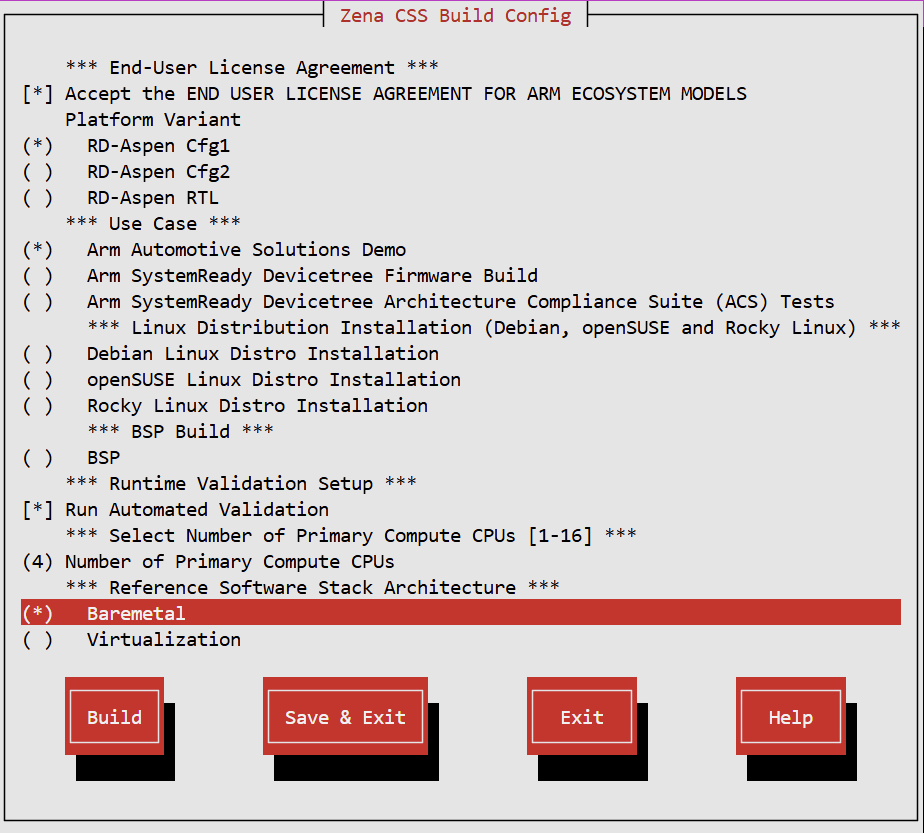
Build

Run the configuration menu:

kas menu arm-zena-css/Kconfig
  1. Select Platform Variant > RD-Aspen RTL

  2. Select RD-Aspen RTL Variant > Emulation or FPGA

  3. Select Build.

Arm Auto Solutions Build Configuration Menu - RTL FPGA Build

Fig. 19 Arm Auto Solutions Build Configuration Menu - RTL FPGA Build

Arm Auto Solutions Build Configuration Menu - RTL Emulation Build

Fig. 20 Arm Auto Solutions Build Configuration Menu - RTL Emulation Build